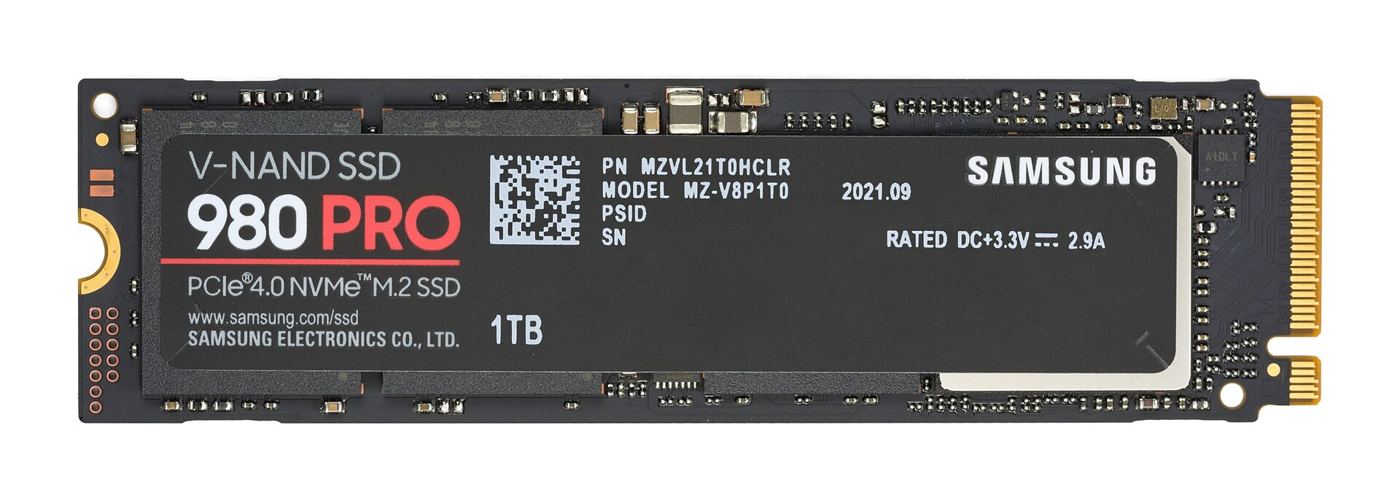
Upgrading to a bigger or faster SSD doesn’t mean reinstalling Windows and all your apps. Cloning copies everything from your old drive, including the operating system, programs and files, onto the new one, so your PC boots up exactly as before. Here’s how to clone your SSD to a new drive, using SSD makers’ and Acronis’s official guidance.
Quick steps
- Back up anything important first.
- Connect the new SSD, either inside your PC or via a USB adapter or enclosure.
- Install cloning software; many SSD makers offer a free tool.
- Choose Clone Disk, pick your old drive as the source and the new SSD as the destination.
- Swap the drives or set the new SSD as the boot drive, then start your PC.
Cloning vs a fresh install
Cloning is the quickest way to upgrade, because your desktop, settings and apps carry straight over. A clean Windows install takes longer but gives you a fresh start. Crucial notes that if your original drive has errors, cloning may fail or the copy may be unstable, in which case a clean install of the operating system may be the better option.
What you need
- A new SSD large enough to hold everything on your current drive. Not sure which to buy? See our PCIe 5 vs PCIe 4 SSD guide.
- A way to connect it. In a desktop with a spare M.2 slot or SATA port, fit it inside. In a laptop with one slot, use a USB adapter: Crucial’s guide uses a SATA-to-USB cable for 2.5-inch SSDs, while M.2 NVMe drives need a USB M.2 enclosure.
- Cloning software. Many SSD makers offer free software for their own drives. For example, Crucial provides Acronis True Image for Crucial at crucial.com/clone. Check your SSD maker’s support site for its tool.
- A backup of your important files, just in case.
- A small screwdriver for fitting the drive.
How to clone your SSD, step by step
These steps follow Crucial’s cloning guide and the Acronis Clone Disk instructions. Other cloning tools work in a very similar way.
1. Connect the new SSD
Fit the new SSD in a spare slot, or connect it with a USB adapter or enclosure. Crucial advises not touching the drive’s gold connector pins.
2. Install the cloning software
Download your SSD maker’s cloning tool and install it. Crucial says its free Acronis edition needs at least one Crucial SSD in your system to run.
3. Choose Clone Disk and Automatic mode
Open the software and select Clone Disk (in Acronis, it’s under Tools). If you’ve never cloned a drive before, Crucial recommends the Automatic mode. Acronis says the Manual mode is useful if you want to change the partition layout.
4. Pick the source and destination
The source is your current drive and the destination is your new SSD. Take care here: Acronis warns that any existing partitions on the destination will be deleted. If the new SSD is connected over USB, Crucial says its interface column will show USB, which helps you identify it.
5. Start the clone and wait
Click Proceed. Crucial says cloning can take a while, and the software may restart or shut down your computer, which is normal. Acronis says your original disk isn’t altered during cloning, so if the process stops you can simply start again.
6. Swap the drives and boot
Once cloning finishes, shut down. If you used a USB adapter, swap the new SSD into your old drive’s place. In a desktop with both drives fitted, you may need to set the new SSD as the boot drive in your PC’s BIOS or UEFI settings. Start your PC and check everything works before you wipe or reuse the old drive.
Make use of the extra space
If your new SSD is bigger, check Windows Disk Management after cloning. If you see unallocated space, you can usually extend your main partition into it. Your old drive can become a backup or a portable drive in a USB enclosure; see our best portable SSD guide for alternatives.
If cloning fails
- New SSD not detected: Crucial suggests checking that cables are secure, trying another cable or port (on a desktop, try the rear USB ports), and initialising the drive in Windows Disk Management.
- Errors on the source disk: Crucial says scanning for and repairing errors on your original disk, then retrying, may help.
- Software conflicts: Crucial suggests creating bootable media and running the cloning tool from it instead of from within Windows.
- Unsupported disks: Acronis says it doesn’t support cloning dynamic disks, and both drives must have the same logical sector size.
Shopping for a new SSD?
Our shop includes drives such as the Samsung 990 EVO Plus, WD_Black SN850X and Crucial P310. Upgrading a console instead? See how to fit an M.2 SSD in a PS5. We haven’t tested every cloning tool ourselves; this guide follows Crucial’s and Acronis’s official instructions. See how we test and choose products.
FAQ
Can I clone an SSD without reinstalling Windows?
Yes. Cloning copies your operating system, apps and files to the new drive, so it boots just like the old one.
Is there free SSD cloning software?
Many SSD makers offer free cloning tools for their drives. For example, Crucial offers Acronis True Image for Crucial, which requires a Crucial SSD in your system.
Will cloning delete data on my old drive?
Acronis says the original disk isn’t altered during cloning, but anything on the destination drive will be deleted.
How do I clone an SSD on a laptop with one slot?
Connect the new SSD with a USB adapter or enclosure, clone it, then swap it into the laptop.
Featured image: Samsung 980 PRO NVMe SSD, photo by D-Kuru via Wikimedia Commons, CC BY-SA 4.0.