As an Amazon Associate, TrueNorth Tech X earns from qualifying purchases. Read our affiliate disclosure.
Running out of space on your PS5 is a pain, especially when one big game can eat a huge chunk of the built-in storage. The good news is that the PS5 has a spare slot inside for an M.2 SSD, and fitting one is a 15-minute job with a single screwdriver. This guide walks you through it step by step, using Sony’s official instructions. It works for both the disc and Digital Edition consoles.
Before you buy: what drive does a PS5 need?
Sony is quite specific about this, so it’s worth checking before you spend anything. According to Sony’s PS5 M.2 SSD support page, your drive needs to be:
- A PCIe Gen4 x4 M.2 NVMe SSD (Socket 3, Key M). M.2 SATA drives won’t work.
- Between 250GB and 8TB.
- One of these sizes: 2230, 2242, 2260, 2280 or 22110 (2280 is the most common).
- Ideally rated at 5,500MB/s sequential read speed or faster.
- Fitted with a heatsink or heat transfer sheet. Sony says not to use a drive without one. Some drives have one built in; for others you buy it separately.
- No bigger than 25mm wide and 11.25mm thick including the heatsink, or the cover won’t fit back on.
One more thing from Sony’s small print: the PS5 doesn’t support Host Memory Buffer (HMB). Some budget drives rely on it, and Sony says they may run slower than expected. Check the drive’s spec sheet if you’re unsure.
What you’ll need
- A compatible M.2 SSD with a heatsink (see above)
- A #1 Phillips (cross-head) screwdriver
- A clear table in a well-lit room, with a soft cloth to protect the console
- A small torch (optional, but handy)
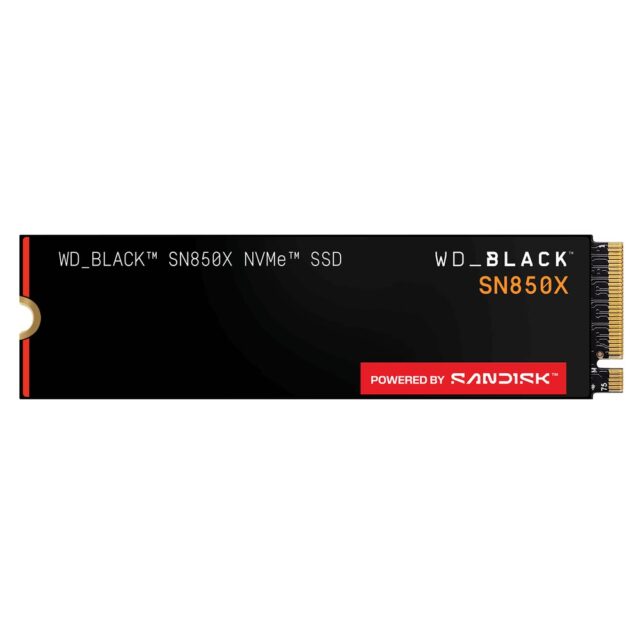
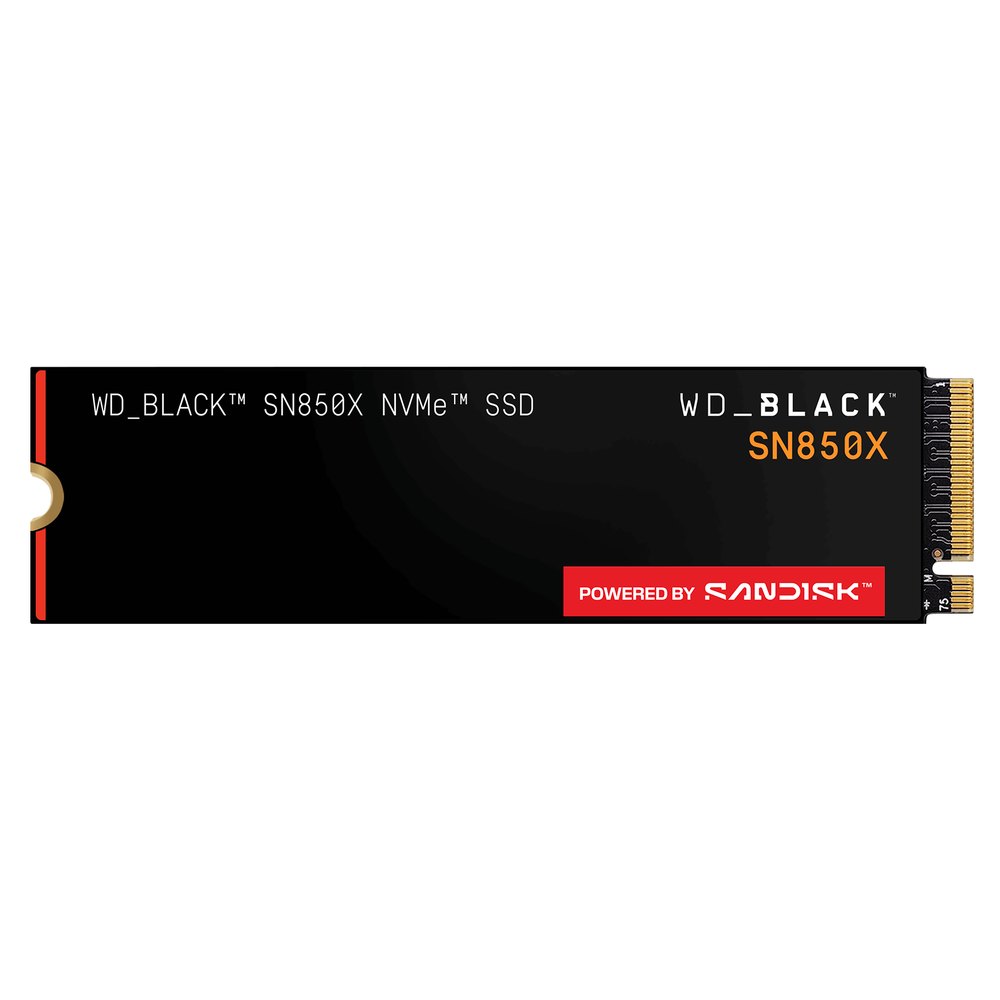
WD_BLACK SN850X 1TB NVMe M.2 PCIe Gen4 SSD
A PCIe Gen4 NVMe drive. Check whether your version has a heatsink; if not, add one that fits Sony’s size limits.
How to fit an M.2 SSD in a PS5: step by step
First, update your PS5’s system software, as Sony recommends doing this before you fit the drive. Then check your model number on the back or bottom of the console. Original PS5s are CFI-1000 models; the slimmer consoles are CFI-2000 (and the PS5 Pro is CFI-7000). The steps are almost the same, but the cover comes off differently.
- Turn the PS5 off fully (not rest mode), unplug every cable, and let it cool down for a while.
- Get rid of static. Touch a grounded metal object before you handle anything. Static can damage the drive or the console.
- Take the cover off. On an original PS5, remove the stand, lay the console with the PS logo facing down and the power button towards you, then lift the top-left corner of the cover and slide it off. On a slim PS5 or PS5 Pro, remove the stand and feet, then take off the small triangle-shaped cover, as shown in Sony’s guide.
- Open the expansion slot. You’ll see a long rectangular cover held by one screw. Unscrew it and lift it off.
- Move the spacer. Remove the screw and spacer inside, and move the spacer to the hole that matches your drive’s length (for example, 80 for a 2280 drive).
- Insert the SSD. Hold it by the edges, line up the notch with the connector, and push it in firmly at a slight upward angle, all the way in.
- Screw it down. Tilt the drive flat onto the spacer and fasten it with the screw. Make sure the heatsink isn’t in the way of the screw.
- Close everything up. Refit the slot cover and its screw. If the cover won’t close properly, Sony says your heatsink is probably too big. Then slide the main cover back on until it clicks.
- Format the drive. Reconnect the cables and switch on. A formatting guide appears automatically; follow it. Formatting wipes the drive, so don’t use one with files you need.
Important: don’t switch the PS5 on with the cover off, and don’t turn the power off while the drive is formatting.
How to move games to your new SSD
- Go to your Game Library.
- Highlight a game, press the Options button and choose Move Games and Apps.
- Tick any other games you want to move, then select Move.
To download new games straight to the SSD, go to Settings > Storage > Installation Location.
Quick FAQ
Will this affect my warranty?
Sony says your warranty generally shouldn’t be affected if you use a drive that meets its specification and follow its instructions properly. Damage caused by getting it wrong isn’t covered, so take your time.
Can I play PS5 games from the M.2 SSD?
Yes. Unlike a USB drive, you can download, update and play PS5 and PS4 games directly from the M.2 SSD. If you’d rather not open the console, see our guide to adding storage with a portable SSD.
My drive already has a heatsink. Should I add another?
No. Sony recommends against adding an extra heatsink to a drive that already has one.
A game is stuttering on the new drive. What now?
Pause any downloads first. If it still struggles, Sony suggests moving the game back to the console’s built-in storage.
Building or upgrading a PC as well? Our best RAM and storage upgrades guide covers the current price picture.