As an Amazon Associate, TrueNorth Tech X earns from qualifying purchases. Read our affiliate disclosure.
Alexa routines turn several commands into one. Instead of asking Alexa to turn on the lights, read the weather and play the radio one at a time, a single phrase or a set time can do all three. Here’s how to set up Alexa routines in the Alexa app, based on Amazon’s own instructions, plus some ideas to get you started.
Quick steps
- Open the Alexa app and tap More, then Routines.
- Tap + to create a new routine.
- Choose Add an event to set what starts it, such as a time or a phrase.
- Choose Add an action for what Alexa should do. You can add several.
- Tap Save.
What is an Alexa routine?
A routine is a set of actions Alexa carries out when something happens. Amazon’s help page says you can use routines to automate things like controlling smart home devices, playing music and getting weather updates. Each routine has two parts: an event (the trigger) and one or more actions.
What you need
- The free Amazon Alexa app on your phone, signed in to your Amazon account.
- An Alexa device, such as an Echo Dot, set up in the app.
- Optional: smart home devices, such as smart plugs or bulbs, already added to Alexa. See our guide on how to set up a smart plug.
How to set up an Alexa routine, step by step
1. Open Routines in the Alexa app
Open the Alexa app, tap More and select Routines.
2. Create a new routine
Tap the + button. Give your routine a name you’ll recognise, such as ‘Good morning’.
3. Choose what starts it
Select Add an event and follow the steps in the app. Popular triggers include a time of day, or a phrase you say to Alexa, such as ‘Alexa, good morning’. Amazon notes that some events add extra settings, such as which device the routine uses and conditions on when it can run.
4. Add what Alexa should do
Select Add an action and choose from the options, such as smart home controls, music, news or weather. You can add several actions to the same routine. Amazon UK says you can also choose Customised and type in exactly what you’d normally ask Alexa, which is handy for anything not in the menus.
5. Save and test it
Tap Save. Then try it out: say your phrase, or wait for the scheduled time, and check everything runs as expected.
Tips for better routines
Keep each routine focused on one moment of your day, such as waking up, leaving the house or going to bed. Short, distinct trigger phrases work best, so Alexa is less likely to mix them up with everyday requests. Name your smart devices clearly in the Alexa app, such as ‘Bedroom lamp’ rather than ‘Plug 1’, so they’re easy to find when you add actions. And start small: build one routine, use it for a few days, then add actions as you work out what you actually need.
Alexa routine ideas to try
- Good morning: at 7am on weekdays, turn on the bedroom lamp, read the weather and play the news.
- Leaving home: say ‘Alexa, I’m leaving’ to switch off lights and smart plugs.
- Movie night: dim the lights and turn on the TV’s smart plug. Pair it with a streaming stick from our streaming stick comparison.
- Bedtime: switch everything off and play some calming music for a set time.
- Radio wake-up: BBC Sounds offers ready-made Alexa routines to wake up to its stations, which you can add and customise.
How to edit, share or delete a routine
To change a routine, open More > Routines in the Alexa app and tap it. Amazon UK says you can also share routines with others using a link or QR code in the app. To delete one, Amazon’s help page says to select the routine, tap the three dots in the top-right corner and choose Delete Routine.
If a routine doesn’t work
- Check the routine saved properly, and that you’ve chosen the right Alexa device for spoken responses.
- Make sure your smart home devices work on their own in the Alexa app first.
- Try rephrasing your trigger phrase if Alexa confuses it with another command.
- Check that your Wi-Fi is reliable where your devices are. Our mesh Wi-Fi guide can help.
Looking for an Echo deal? See our Black Friday 2026 UK preview or browse smart speakers in our shop. We haven’t tested every routine ourselves; this guide follows Amazon’s official instructions. See how we test and choose products.
FAQ
Where are routines in the Alexa app?
Open the Alexa app, tap More, then select Routines.
Can an Alexa routine do more than one thing?
Yes. Amazon says you can add multiple actions to the same routine.
Can I make Alexa do something not listed in the actions?
Yes. Amazon UK says you can choose Customised and type in what you would ask Alexa to do.
How do I delete an Alexa routine?
In the Alexa app, open More, then Routines, select the routine, tap the three dots and choose Delete Routine.
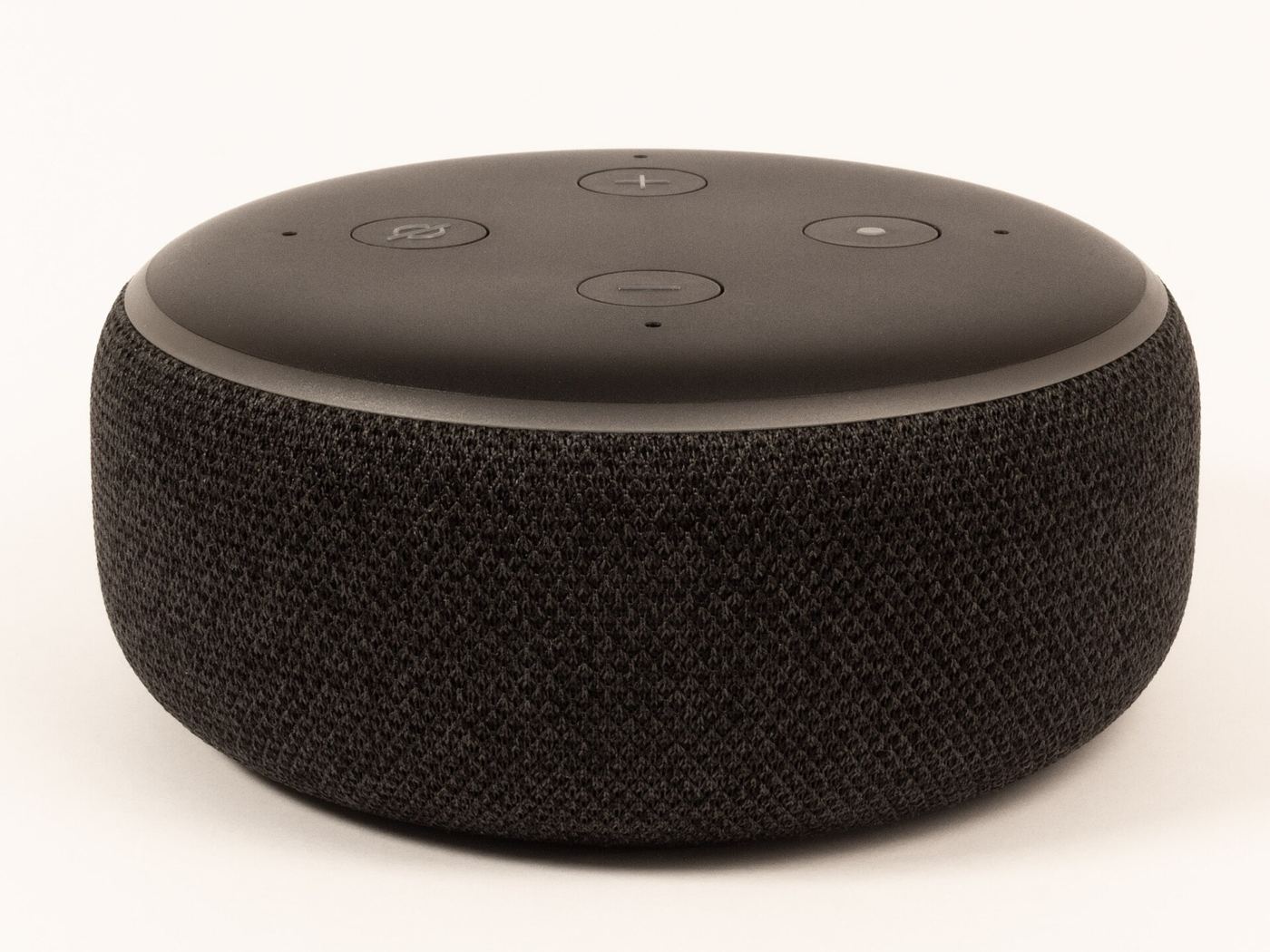
Featured image: Echo Dot (3rd Gen), photo by Samuel Wiki via Wikimedia Commons, CC0.