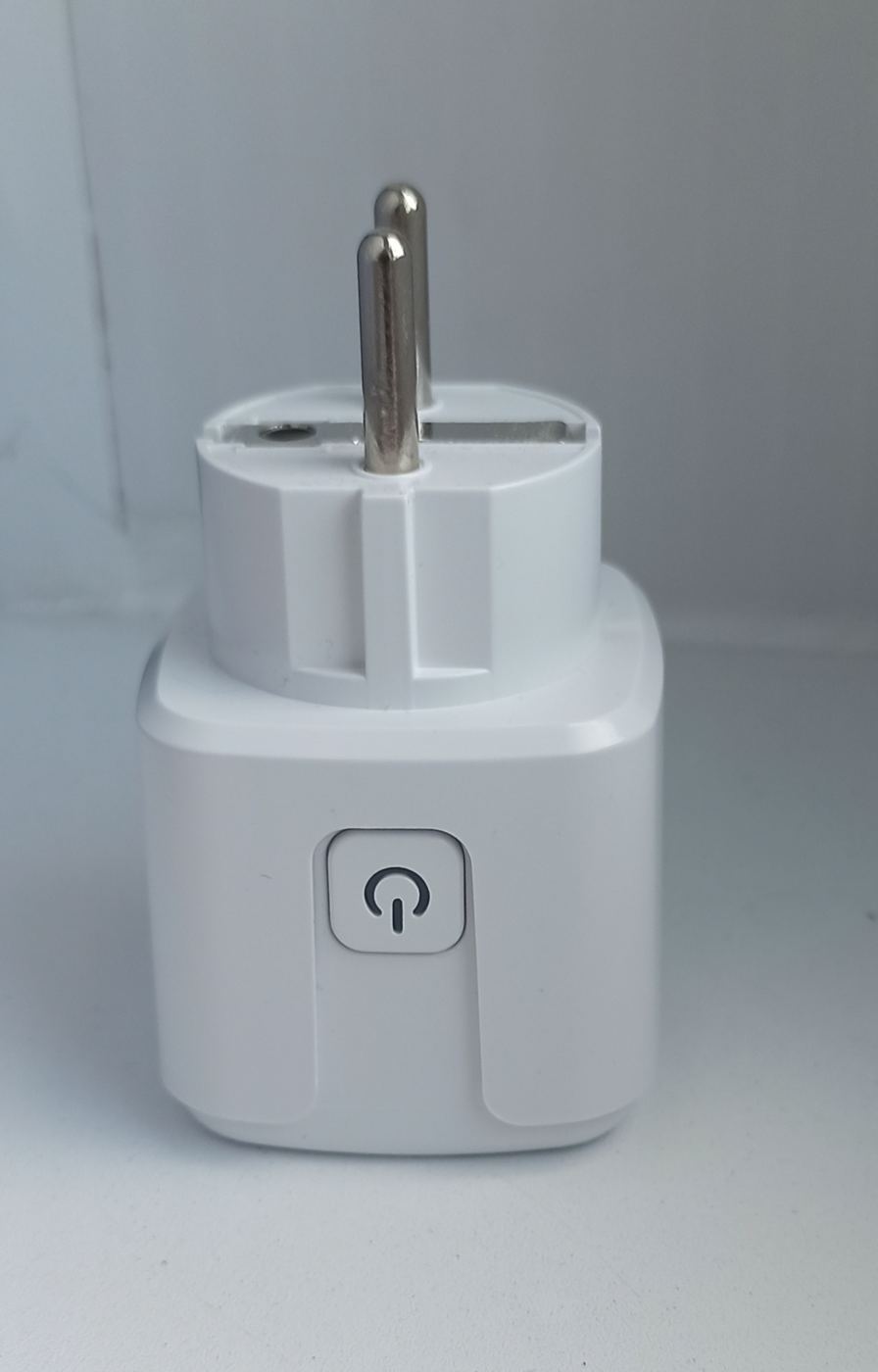
A smart plug is one of the easiest ways to start a smart home. It sits between your wall socket and an appliance, letting you switch lamps, fans or chargers on and off from your phone, by voice or on a schedule. Here’s how to set up a smart plug, using TP-Link’s Tapo plugs as our example, though other brands follow similar steps.
Quick steps
- Download the plug’s app (Tapo for TP-Link Tapo plugs) and sign in.
- Tap + to add a new device and choose your plug model.
- Plug it in and wait for the LED to blink.
- Connect it to your 2.4GHz Wi-Fi network and enter your password.
- Name it, update the firmware, then link Alexa or Google Home if you like.
What you need before you start
- A 2.4GHz Wi-Fi network. TP-Link says Tapo plugs only support 2.4GHz, not 5GHz. Our Wi-Fi 6 vs Wi-Fi 7 guide explains the bands.
- Your Wi-Fi password, and your phone connected to that same network.
- The manufacturer’s app. For Tapo plugs it’s the free Tapo app, and you’ll need to sign in with a TP-Link ID.
- Bluetooth switched on on your phone, as some plugs use it during setup.
- An indoor socket. TP-Link says its standard Tapo plugs are for indoor use only.
How to set up a smart plug, step by step
These steps follow TP-Link’s UK setup guide and the Tapo P100 manual.
1. Install the app and sign in
Download Tapo from the App Store or Google Play and log in, or create a TP-Link ID.
2. Add the plug in the app
Tap the + button, then Add Device. Choose Plugs and select your exact model.
3. Plug it in and wait for the light
Plug the smart plug into a wall socket and wait for its LED to blink orange and green, which means it’s ready to set up. If it doesn’t, TP-Link says to hold the button for about 5 seconds to reset its Wi-Fi.
4. Connect it to your Wi-Fi
Follow the app’s prompts. Depending on the model and your phone, it will connect to the plug over Bluetooth or ask you to join the plug’s own temporary Wi-Fi network (named something like Tapo_Plug_XXXX). Then choose your home network and enter its password.
5. Name it and update the firmware
Give the plug a clear name, such as ‘Living room lamp’, and choose its room. This makes voice control much easier. The app will then offer a firmware update; install it and switch on automatic updates if offered.
Add Alexa or Google Home
Once the plug works in its own app, you can link it to a voice assistant. TP-Link says Tapo plugs work with Amazon Alexa and Google Home once they’ve been set up in the Tapo app. In the Alexa or Google Home app, you’ll typically add the Tapo skill or service and sign in with your TP-Link ID so your plugs appear. Then you can say things like ‘Alexa, turn on the living room lamp’. If you need a speaker, see the Echo Dot in our shop.
Schedules, timers and away mode
Schedules are where smart plugs really earn their keep. In the Tapo app you can set times for the plug to switch on and off, such as a lamp coming on at sunset or a heated airer switching off after a few hours. According to Tapo’s FAQ, each plug supports up to 32 schedules. TP-Link also says the plugs can still be controlled locally on your home network if your internet connection drops.
Some models, such as the Tapo P110 and P115, include energy monitoring to show how much power a device uses, while the P100 and P105 don’t. Check the model before you buy if that matters to you.
If setup fails
TP-Link’s troubleshooting guide suggests these fixes:
- Move the plug closer to your router for setup, then move it back.
- If your network doesn’t appear, tap Rescan, or enter it manually using the ‘Other Network’ option.
- Check that your router’s 2.4GHz band is switched on. TP-Link suggests using channel 1, 6 or 11, a 20MHz channel width and WPA2 security.
- Set up one smart device at a time.
- As a last resort, hold the plug’s button for about 10 seconds to factory reset it, then start again.
Wi-Fi patchy at the far end of the house? Our mesh Wi-Fi setup guide can help.
Where to get a smart plug
We stock the TP-Link Tapo P100 four-pack, and you can browse more in our smart plugs and lighting section. Smart plugs are often discounted in the sales, so see our Black Friday 2026 UK guide too. We haven’t tested these plugs ourselves; this guide is based on TP-Link’s official instructions. See how we test and choose products.
FAQ
Why won’t my smart plug connect to Wi-Fi?
Many smart plugs, including Tapo models, only support 2.4GHz Wi-Fi. Make sure that band is switched on, move the plug closer to the router and try again.
Do smart plugs work without the internet?
TP-Link says Tapo plugs can still be controlled locally on your home network without an internet connection, but remote control and voice assistants need it.
How do I reset a Tapo smart plug?
TP-Link says to hold the button for about 5 seconds to reset the Wi-Fi settings, or about 10 seconds for a full factory reset.
Can I use a smart plug with Alexa?
Yes. Set the plug up in its own app first, then link the manufacturer’s skill in the Alexa app.
Featured image: Smart plug adapter, photo by Sokolikmawwer0 via Wikimedia Commons, CC BY-SA 3.0.