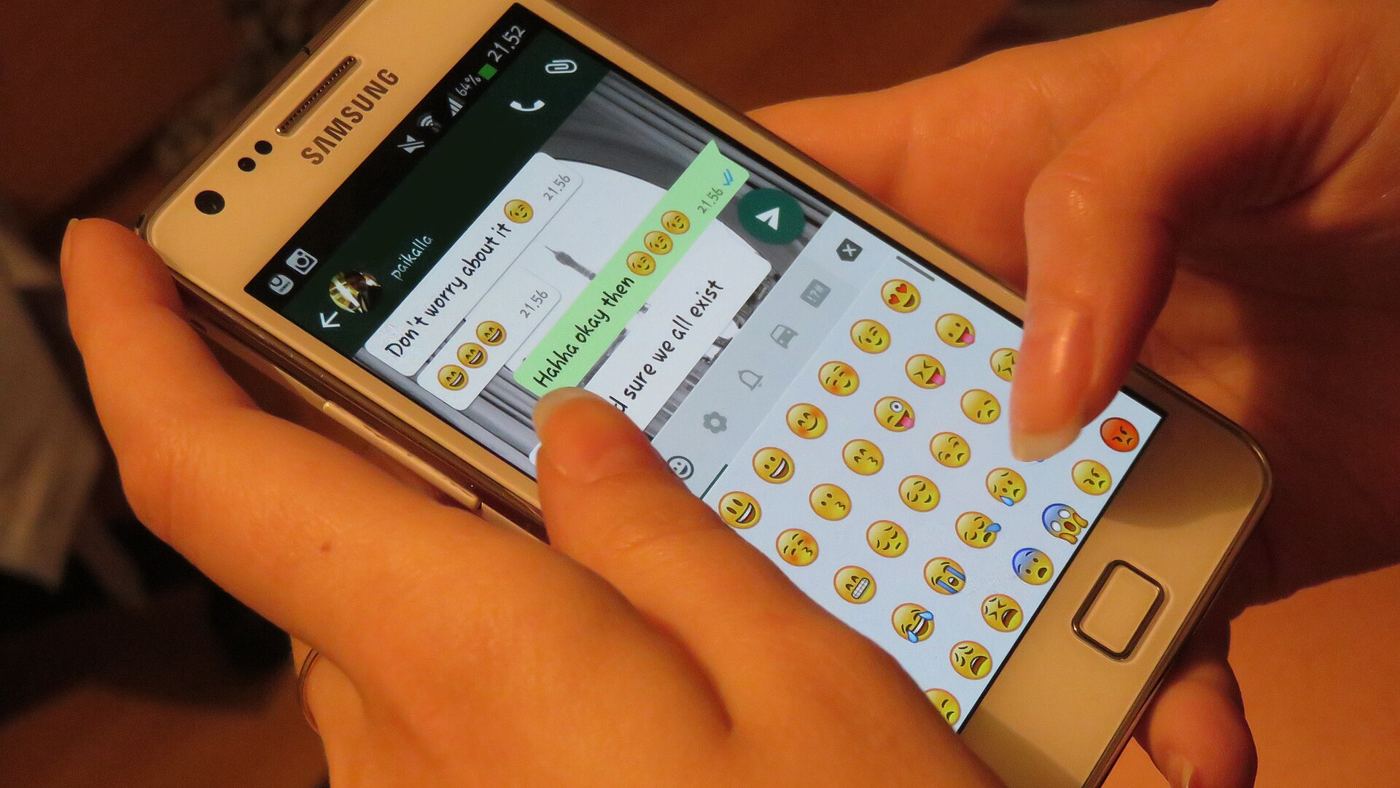
Switching phones is exciting, but losing years of WhatsApp chats isn’t. The good news is that WhatsApp now officially supports moving your chats between Android and iPhone in both directions. Here’s how to transfer WhatsApp from Android to iPhone, and back again, using WhatsApp’s and Apple’s own instructions.
Quick steps
- Android to iPhone: use Apple’s Move to iOS app while setting up your new iPhone, and select WhatsApp.
- iPhone to Android: connect the phones with a cable during Android setup and scan the QR code with your iPhone.
- Keep the same phone number on both phones.
- Don’t open WhatsApp on the new phone until the transfer is done.
- Don’t wipe the old phone until you’ve checked everything moved.

What moves across, and what doesn’t
According to WhatsApp’s Help Centre, your messages and media can move across, and Apple lists WhatsApp messages and media among the content Move to iOS can transfer. You can’t transfer your call history or display name, and WhatsApp says peer-to-peer payment messages can’t be moved either. Status updates can’t be moved from iPhone to Android. Transfers aren’t currently supported for the WhatsApp Business app.
Before you start (both directions)
- Same number: WhatsApp says you must use the same phone number on the new phone. If your number is changing, change it on your old phone first.
- Latest WhatsApp: update WhatsApp on your old phone, and install the latest version on the new one.
- Don’t activate WhatsApp on the new phone first: WhatsApp says you can only restore your history before WhatsApp is activated on the new device, and old and new chats can’t be merged.
- Plug both phones in and keep them close together.
How to transfer WhatsApp from Android to iPhone
WhatsApp’s requirements are Android 5 or later on your old phone, iOS 15.5 or later on the iPhone, and Apple’s Move to iOS app installed on the Android phone. Your iPhone must be brand new or factory reset, both phones must be on power, and they need to be on the same Wi-Fi network, or the Android phone connected to the iPhone’s hotspot. WhatsApp warns that other data migration apps aren’t supported.
Here’s the process, combining Apple’s guide and WhatsApp’s steps:
- Start setting up your new iPhone. On the Transfer Your Apps & Data screen, tap From Android, then Transfer with App.
- Open Move to iOS on your Android phone, tap Continue, agree to the terms and allow the permissions it asks for.
- A code appears on your iPhone. Enter it on your Android phone, then join the temporary Wi-Fi network the iPhone creates.
- On the Transfer Data screen, select WhatsApp, plus anything else you want to move.
- Tap Start on the Android phone and wait while WhatsApp prepares your data. You’ll be signed out of WhatsApp on Android.
- Tap Next to return to Move to iOS, then Continue, and wait for the transfer to finish. Apple says to leave both phones alone until the loading bar on the iPhone completes.
- Install WhatsApp from the App Store, log in with the same number, tap Start when asked and let it finish.
Apple says you can also connect the phones with a USB-C cable for a faster transfer. If you’ve already finished setting up your iPhone, Apple says you’ll need to erase it and start again to use Move to iOS. WhatsApp adds that transferred data isn’t uploaded to the cloud until you create an iCloud backup, and your Android phone keeps its copy until you delete WhatsApp or wipe it.
How to transfer WhatsApp from iPhone to Android
WhatsApp’s iPhone-to-Android guide says you’ll need the latest WhatsApp for Android, the same phone number, a Lightning-to-USB-C cable or equivalent adapter, and a Samsung phone with the latest Smart Switch, a Google Pixel, or another phone running Android 12 or later. The Android phone should be new or factory reset.
- Start setting up your new Android phone and choose to restore or copy data when asked.
- When you reach the copy apps and data screen, connect the phones with the cable. If your iPhone asks, tap Trust.
- When prompted, scan the QR code on the Android phone with your iPhone’s camera, and keep the iPhone unlocked.
- Tap Start on the iPhone and wait for the transfer to complete, then unplug the cable.
- Open WhatsApp on the Android phone, verify your number and tap Start to finish.
Google’s Android Help adds that if you skipped this during setup, some phones offer it later in Settings, for example under Accounts & backup, and Samsung phones use Smart Switch. It also says you may have only a few days after setup to restore chats this way.
If the transfer fails
WhatsApp’s troubleshooting page recommends restarting both phones and trying again. Most importantly, don’t delete data, reset your old phone or uninstall WhatsApp until you’ve confirmed your chats arrived.
More help switching phones
Moving your number too? See our guide to switching to eSIM. Choosing a new phone? Read our Galaxy S26 vs Pixel 10 comparison. Running short of space on Android? Here’s how to use a microSD card on Android.
FAQ
Can I transfer WhatsApp from Android to iPhone without resetting the iPhone?
Not with WhatsApp’s official method. WhatsApp says the iPhone must be factory new or reset to pair with the Move to iOS app.
Will my WhatsApp call history transfer?
No. WhatsApp says call history can’t be transferred between Android and iPhone.
Can I move WhatsApp chats to a new phone number?
Not directly. WhatsApp says you need to change your number on your old phone first, then transfer.
Does WhatsApp Business support Android to iPhone transfers?
WhatsApp says it’s currently not possible to transfer chats between Android and iPhone in the WhatsApp Business app.
Featured image: Texting on WhatsApp, photo by Helar Lukats via Wikimedia Commons, CC BY-SA 4.0.