More and more phones support eSIM, and all four big UK networks now offer it. But is it worth switching from your trusty plastic SIM card, and how do you actually do it? Here’s our plain-English guide to eSIM vs physical SIM, plus step-by-step instructions for iPhone and Android.
Quick steps
- Check your phone supports eSIM: dial *#06# and look for an EID number.
- Make sure your phone is unlocked if you’re moving to a new network.
- Connect to Wi-Fi and update your phone’s software.
- Get your eSIM from your network’s app or account, or convert your SIM in your phone’s settings.
- Scan the QR code or follow the on-screen steps, then check calls and data work.
What is an eSIM?
An eSIM is a digital SIM built into your phone. EE describes it as storing the details your device needs to connect to the network, with no card to swap. Instead of putting a SIM in a tray, you download your plan to the phone. Vodafone adds that an eSIM-compatible device can store more than one eSIM profile, each with its own number and plan.
eSIM vs physical SIM: pros and cons
- Faster to get started: Vodafone says an eSIM can be available instantly when you choose a plan, while a SIM card needs to be delivered or collected.
- Easier to switch networks: you download a new eSIM profile instead of waiting for a new card.
- Two numbers on one phone: EE notes you can have more than one line on the same device, handy for keeping work and personal separate.
- Safer if your phone is stolen: O2 says your eSIM and the information on it stays safe if your device is lost or stolen, as there’s no card to remove.
- The downside: moving to a new phone means transferring the eSIM, not just swapping a card. Vodafone says physical SIMs still suit people using older devices.
Step 1: Check your phone supports eSIM
EE, O2 and Vodafone all suggest the same quick test: open your phone’s dialler and enter *#06#. If you see an EID (eSIM identifier) number, your phone supports eSIM. You can also check your network’s compatible device list or your phone maker’s specs.
If you’re switching to a new network, your phone also needs to be unlocked. Vodafone says a device locked to another provider must be unlocked first.
Step 2: Get an eSIM from your network
We checked each big UK network’s own help pages on 31 October 2026. Options change, so check your network’s site before you start.
- EE: EE’s help page lists eSIM pre-installed on new pay monthly phones, with SIM only plans (download it in the EE app), or as a QR code pack by post. Existing customers can replace a SIM with an eSIM in the EE app: Manage > Mobile and SIMs > Check Settings > Replace my SIM/eSIM.
- O2: O2 says eSIM is available for Pay Monthly, SIM Only and Pay As You Go customers, if eligible. SIM Only customers find a QR code under ‘Install a SIM’ in My O2. O2’s Pay As You Go page says eSIMs are available on its Big Bundle and Rolling Plan offers, online or in store.
- Vodafone: Vodafone offers eSIM with SIM only plans and phones. Existing customers can go to My Vodafone, choose Manage my SIM and follow the prompts. Vodafone emails a QR code to scan.
- Three: Three says you can get an eSIM with any Three Your Way plan, and existing customers with a compatible phone can switch in their device settings. Replacement eSIMs are available for Pay Monthly and Pay As You Go customers through My3 or the Three app. Three sends a QR code and a separate confirmation code, and says activation can take up to 7 hours.
On a smaller network, such as one of the many virtual networks? Check its own help pages, as we haven’t covered them here.
Step 3: Switch to eSIM on iPhone
Many iPhones can convert a physical SIM to an eSIM in settings. Vodafone says iPhones from 2019 or later on the latest software can go to Settings > Mobile Service and choose to convert to eSIM, if your network supports it. If your network gave you a QR code, EE’s guide says to go to Settings > Mobile Service > Add eSIM, scan the code and tap Activate.
Moving to a new iPhone? Three explains that you can transfer a physical SIM or eSIM from your old iPhone during setup using Quick Start, or later under Settings > Mobile Service > Set Up Mobile Service.
Step 4: Switch to eSIM on Android
Menus vary between phone makers, but these are the common routes:
- Samsung Galaxy: EE’s guide says go to Settings > Connections > SIM Manager > Download a new eSIM, then follow the steps.
- Google Pixel and many other Android phones: EE’s guide says go to Settings > Network & internet > SIMs > Add SIM, then choose Set up an eSIM instead and scan your QR code.
- New phone: some Android phones support eSIM transfer during setup. Three lists eSIM Quick Transfer support for recent Google Pixel models.
Tips for a smooth switch
- Use Wi-Fi and charge up first. EE recommends a Wi-Fi or data connection, the latest software and plenty of battery.
- Keep your QR code private. O2 says never to share it, and Three says its codes can only be used once.
- Don’t delete an eSIM casually. Check with your network first, as you may need a new eSIM to get it back.
- Your number stays the same. EE says replacing a SIM with an eSIM through its app keeps your number. Once the eSIM is working, you can dispose of the old card.
Setting up a new Android phone? See how to use a microSD card on Android and our Qi2 vs MagSafe charging guide. Browse phones and phone accessories in our shop, and check whether a phone supports eSIM before you buy.
FAQ
How do I know if my phone supports eSIM?
Dial *#06#. If your phone shows an EID number, it supports eSIM. You can also check your network’s compatible device list.
Do I keep my number when I switch to eSIM?
Yes, when you replace your SIM with an eSIM from the same network. EE, for example, says switching through its app keeps your mobile number.
Can I use an eSIM and a physical SIM together?
On many dual-SIM phones, yes. Vodafone says an eSIM leaves room for a physical SIM, so you can use two numbers on one phone, if your phone is dual-SIM compatible.
Can I get an eSIM on pay as you go?
It depends on the network and plan. O2 and Three both mention eSIM options for Pay As You Go customers on their help pages; check your network for the latest.
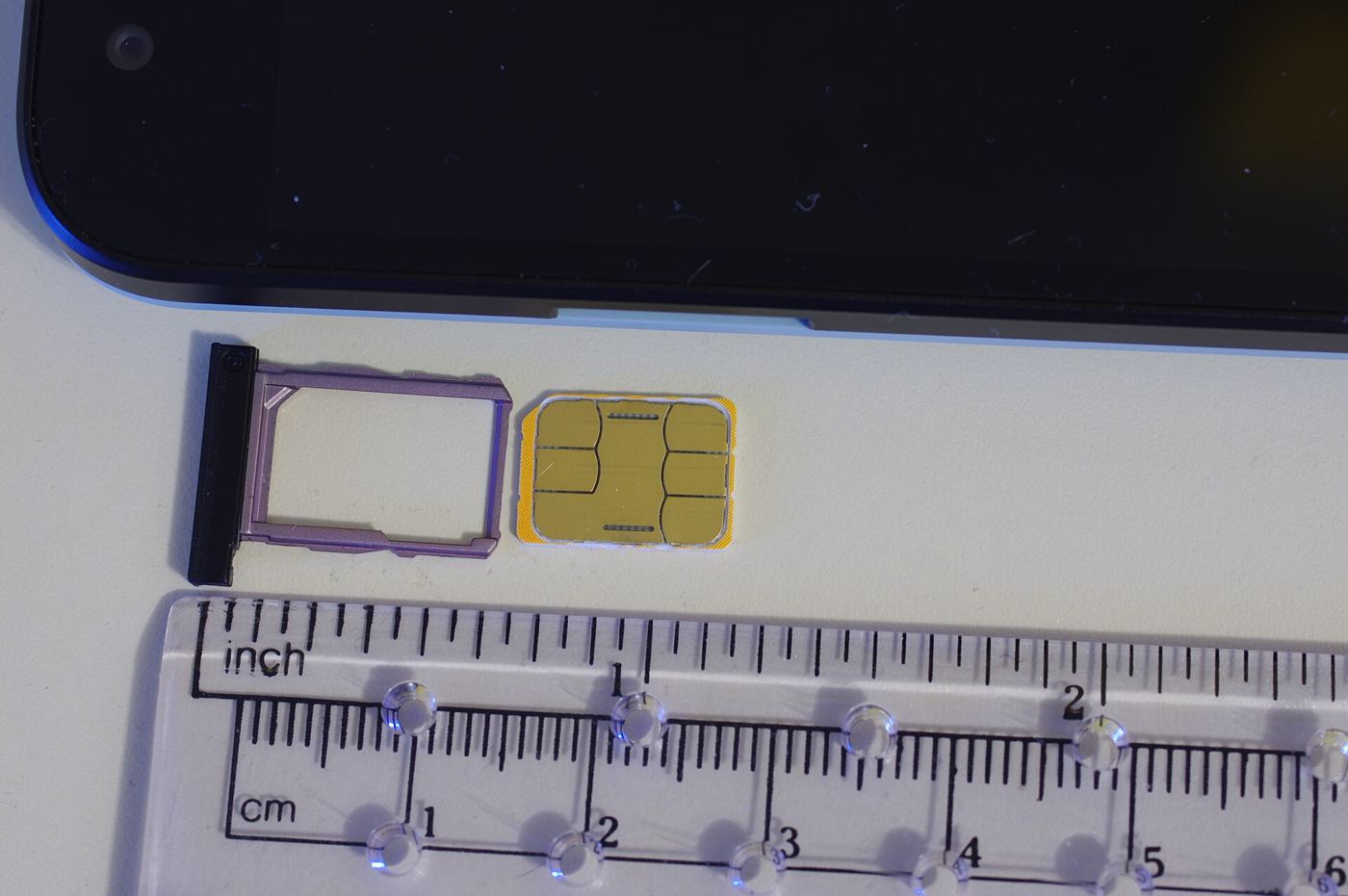
Featured image: Nano SIM card and tray, photo by BwDraco via Wikimedia Commons, CC BY-SA 3.0.