As an Amazon Associate, TrueNorth Tech X earns from qualifying purchases. Read our affiliate disclosure.
Running out of space on your Android phone? If it has a microSD slot, a memory card is one of the cheapest ways to get more room for photos, videos, music and downloads. But Android gives you two quite different ways to use a card, and picking the wrong one can cause problems later. Here’s how to use a microSD card on Android, step by step.
Quick steps
- Check your phone has a microSD slot and what size card it supports.
- Back up anything on the card, as setting it up will erase it.
- Insert the card, tap the SD card detected notification and choose how to use it.
- Pick portable storage for photos, music and files, or internal storage (if offered) to install apps on it.
- Set your camera to save to the card and move big files across.
Prices change often. Tap Check price on Amazon for today’s price.
Step 1: Check your phone supports microSD
Many phones, especially flagships, no longer have a card slot, so check your phone’s spec sheet or manual first. It will usually say the maximum card size it supports. For example, Motorola’s spec page for the moto g86 5G says it takes cards up to 1TB. On most phones, the card goes into the same tray as the SIM, which you open with the small SIM tool.
Step 2: Portable or internal storage?
This is the big decision. Google’s Android Help explains the two options:
- Portable storage: the card works like a USB stick. You can store photos, videos, music and other files, and take the card out to use in another phone, camera or computer. You can’t install apps on it.
- Internal storage (sometimes called adoptable storage): the card becomes part of your phone’s own storage, so you can install apps on it. But it only works in that phone. Android’s developer documentation says the card is formatted and encrypted for that one device, so another device can’t read it.
For most people, portable storage is the better choice. It’s simpler, safer and keeps the card readable elsewhere. Internal storage makes sense only if your phone is truly short of space for apps.
Not every phone offers both. Motorola’s support guide says that if you don’t see the option to format the card as internal storage, your phone supports portable storage only. The moto g86 5G, for instance, uses cards as portable storage only, so you can’t store apps on the card.
Step 3: Set up the card
Back up anything on the card first, because formatting deletes everything on it. Then:
- Insert the card with your phone switched off, or as your manual advises.
- When you see the SD card detected notification, tap it.
- For portable storage, choose Format (or follow the on-screen steps to use it as portable storage).
- For internal storage, look for Format another way or Format as internal, if your phone offers it.
- Follow the prompts to finish.
Menus vary between phone makers and Android versions, so the wording may differ slightly. If you missed the notification, Google says you can find the card under Settings > Storage, then open its menu to change or format it.
Step 4: Move photos, videos and files
Open your phone’s Files app, find the folders you want to move, such as Camera, Downloads or Music, then use Move to and choose the SD card. Motorola also suggests checking your camera app’s settings so new photos and videos save straight to the card. Your phone’s storage settings may also offer to move files for you.
Step 5: Move apps (internal storage only)
If you set the card up as internal storage, Motorola says you can move a supported app by going to Settings > Apps, choosing the app, tapping Storage and then Change. If you don’t see Change, the app can’t be moved. Android’s developer guide explains that app makers choose whether their app can be installed on external storage.
Important: if apps are on the card, don’t just pull it out. Motorola warns that apps stored on the card won’t work without it, so move them back to the phone first.
Which microSD card should you buy?
Look for these markings on the card:
- Capacity: stay within your phone’s maximum card size.
- A2 (or A1): the App Performance rating, useful if you’ll run apps from the card.
- U3 or V30: good for recording 4K video.
- Brand: buy from a well-known brand and a trusted seller to avoid fake cards.
The SanDisk Extreme 128GB in our shop is rated A2, U3 and V30, with read speeds of up to 190MB/s and writes of up to 90MB/s, according to SanDisk.
If you want more room and faster writes, the SanDisk Extreme PRO 256GB is rated up to 200MB/s read and 140MB/s write, with A2.
Need a phone with a card slot? The moto g86 5G in our shop has 256GB of built-in storage and takes microSD cards up to 1TB, though only as portable storage. You can see more cards in our storage section.
More storage guides
Got a handheld too? See how to move games to a microSD card on Steam Deck. For backing up a full phone or laptop, our best portable SSD guide can help, and we also cover adding storage to Xbox and PS5.
FAQ
Can I install apps on a microSD card on Android?
Only if your phone lets you set the card up as internal (adoptable) storage, and the app allows it. With portable storage, the card holds files only.
Will formatting my microSD card delete everything?
Yes. Formatting erases everything on the card, so back up your files first.
Can I move an internal-storage card to another phone?
No. A card set up as internal storage is encrypted for that phone. To use it elsewhere, you’d need to format it again, which erases it.
Why can’t I see the option to format as internal?
Some phones only support portable storage. Motorola says that if the option isn’t there, your phone doesn’t support using the card as internal storage.
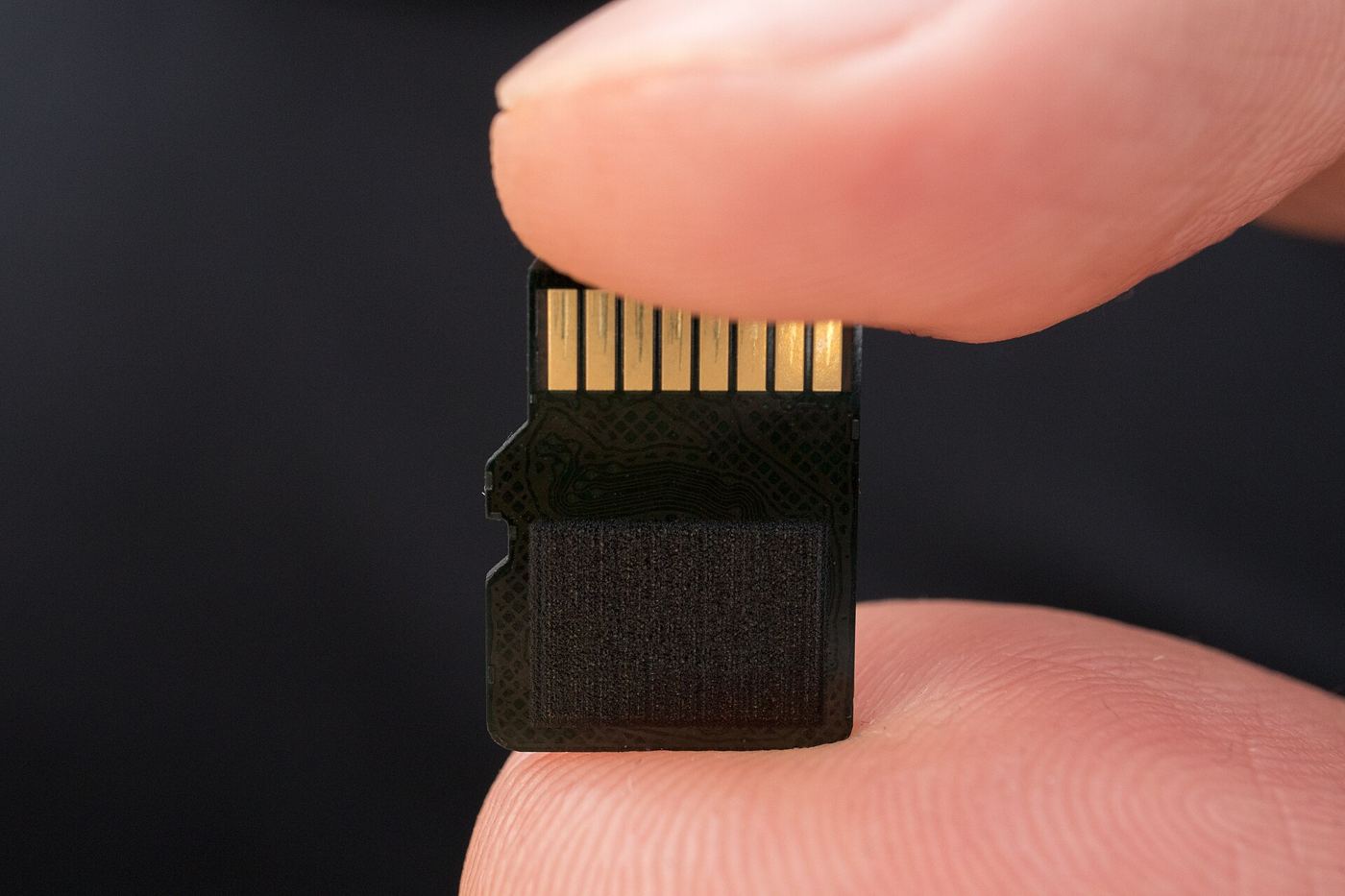
Featured image: MicroSD card photo by Ivan Radic via Wikimedia Commons, CC BY 2.0.