A new laptop, or one that’s started to feel a bit sluggish, nearly always benefits from ten minutes in the Settings app. These are the Windows 11 settings you should change first: small switches that free up space, cut down on pop-ups, stop surprise restarts and help your battery last. Every menu path below comes from Microsoft’s own support pages, so you can follow along step by step.
Quick answer: the 10 settings
- Turn on Storage Sense to clear junk files automatically.
- Switch off the startup apps you don’t need.
- Set your active hours so updates don’t restart you mid-task.
- Turn off tips and suggestions notifications.
- Turn off the advertising ID.
- Schedule Night light for the evenings.
- Turn on clipboard history (Windows key + V).
- Pick the right power mode for plugged in and on battery.
- Turn on Find my device.
- Check Game Mode and your graphics settings if you play games.
Quick tip before you start: press Windows key + I to open Settings, and use the search box at the top if a menu has moved slightly on your version.
1. Turn on Storage Sense
Storage Sense automatically clears out things you don’t need, such as temporary files and old items in the Recycle Bin. Microsoft says it’s off by default, although Windows may switch it on if your drive gets very low on space. Go to Settings > System > Storage and set Storage Sense to On. Select Storage Sense itself to choose how often it runs and how long files stay in the Recycle Bin.
Your Downloads folder is left alone unless you tell Storage Sense otherwise, so nothing you’ve saved disappears by surprise. If your drive is still full after a clean-up, it might be time for a bigger SSD: our guide to cloning an SSD to a new drive walks you through moving everything across, and you’ll find drives in our Storage & Memory shop.
2. Switch off startup apps you don’t need
Lots of apps set themselves to launch the moment you sign in, which slows down start-up. Go to Settings > Apps > Startup and turn off anything you don’t need straight away, like chat apps, game launchers or updaters you can open yourself.
For more detail, right-click Start, open Task Manager and select the Startup apps tab. Microsoft explains that Task Manager shows each app’s startup impact, rated from Low to High, which makes it easier to spot the worst offenders. Leave anything for your antivirus, audio or touchpad drivers alone if you’re not sure what it does.
3. Set your active hours for Windows Update
Windows 11 installs updates automatically, and sometimes it needs to restart to finish. Active hours tell it when you’re usually using the PC so it avoids restarting then. Go to Settings > Windows Update > Advanced options > Active hours. Microsoft’s guide says you can let Windows set them automatically based on your activity, or choose Manually and enter your own hours.
Please don’t switch updates off altogether, as they carry security fixes. Our post on Windows 11 24H2 security updates ending explains why staying on a supported version matters.
4. Turn off tips and suggestions
If pop-ups about features you didn’t ask for drive you mad, go to Settings > System > Notifications and open Additional settings at the bottom. Microsoft lists two options here: Get tips and suggestions when using Windows, and the welcome screen that shows what’s new after updates. Untick whichever you don’t want. While you’re on that page, turn off notifications for any apps that don’t need to interrupt you.
5. Turn off the advertising ID
Windows gives each user an advertising ID that apps can use to show more targeted ads. To turn it off, go to Settings > Privacy & security > Recommendations & offers and switch off Let apps show my personalised ads by using my advertising ID. Be aware of what this does and doesn’t do: Microsoft notes it won’t reduce the number of ads you see, but they’ll be less personalised.
6. Schedule Night light
Night light warms up the colours on your screen in the evening so it’s easier on the eyes. Go to Settings > System > Display > Night light, turn on Schedule night light, and pick Sunset to sunrise or set your own hours. Microsoft’s display guide also covers the strength slider, and says the toggle can be greyed out if your display driver needs updating.
7. Turn on clipboard history
This is the one people tend to wish they’d found sooner. Press Windows key + V and select Turn on. From then on, Windows keeps a list of the things you’ve copied, so you can paste something from ten minutes ago without hunting for it again.
According to Microsoft, the history holds up to 25 items and is cleared when you restart, apart from anything you pin. You can also sync it between your PCs in Settings > System > Clipboard, which is handy but worth thinking about if you copy passwords.
8. Pick the right power mode
Go to Settings > System > Power & battery and look under Power mode. Microsoft’s guide says you can choose Best power efficiency, Balanced or Best performance separately for when you’re plugged in and on battery. A sensible setup for most laptops is Best performance when plugged in and Balanced or Best power efficiency on battery. If you can’t change it, a custom power plan may be selected in Control Panel.
9. Turn on Find my device
If your laptop is ever lost or stolen, Find my device can show its location on a map and let you lock it remotely from account.microsoft.com/devices. Microsoft says it must be turned on before you need it, you have to sign in with a Microsoft account, your account must be an administrator, and location needs to be on. Search for Find my device in Settings to switch it on.
10. Check Game Mode and your graphics settings
If you game on your PC, go to Settings > Gaming > Game Mode. Xbox Support says Game Mode is on by default, and that it stops Windows Update installing drivers and sending restart notifications while you play. Microsoft also suggests checking Settings > System > Display > Graphics and choosing the default graphics settings, where you’ll find hardware-accelerated GPU scheduling, optimisations for windowed games and Auto HDR if you have an HDR screen.
Setting up a controller next? Our guide on how to connect an Xbox controller to PC covers USB, Bluetooth and the wireless adapter.
Verdict
None of these changes takes more than a minute or two, and together they make Windows 11 quieter, tidier and less likely to restart at the wrong moment. If you only do three, turn on Storage Sense, trim your startup apps and set your active hours. Everything here can be switched back the same way if you change your mind.
Still deciding on your next laptop? Our Chromebook vs Windows laptop guide weighs up the two, and you can browse laptops and monitors in our shop.
FAQ
What Windows 11 settings should I change first?
Start with Storage Sense, startup apps and active hours. They free up space, speed up sign-in and stop updates restarting your PC while you’re using it.
Is it safe to turn off startup apps in Windows 11?
Generally yes, for apps you can open yourself, like chat apps and game launchers. Leave security software and hardware drivers on if you’re not sure what they do.
Does turning off the advertising ID stop ads in Windows 11?
No. Microsoft says it won’t reduce the number of ads you see, but they’ll be less personalised to you.
Should I turn off Windows updates?
No. Updates include security fixes. Set active hours instead, so restarts happen when you’re not using the PC.
Is Game Mode on by default in Windows 11?
Yes. Xbox Support says Game Mode is turned on by default, and you can check it in Settings, Gaming, Game Mode.
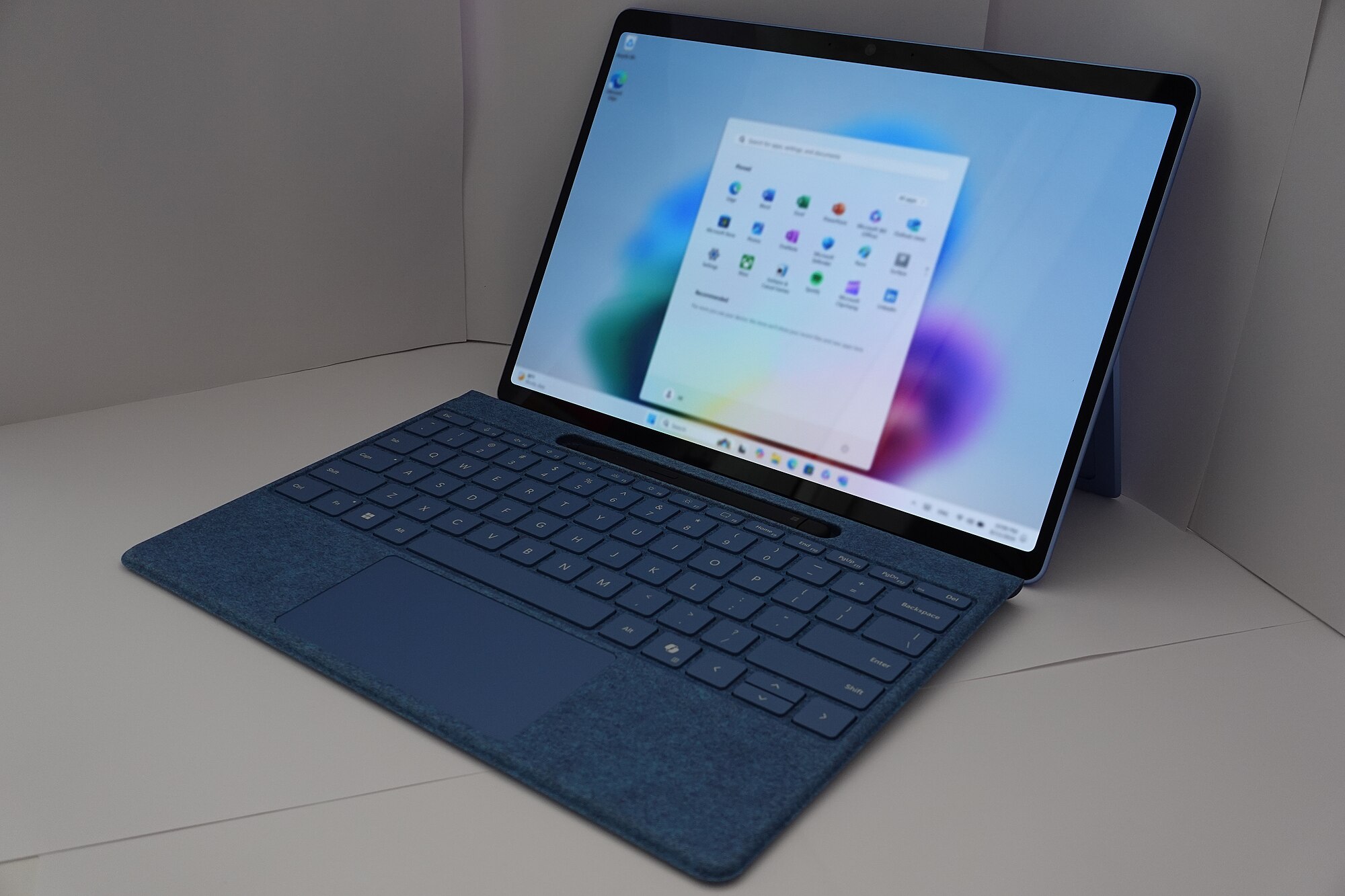
Featured image: laptop running Windows 11, photo by KK IN HK via Wikimedia Commons, CC BY-SA 4.0.
Enjoyed this? Follow along for more guides and deals. More guidesXInstagramFacebookWhatsAppTelegram