As an Amazon Associate, TrueNorth Tech X earns from qualifying purchases. Read our affiliate disclosure.
The Xbox Wireless Controller is one of the most popular pads for PC gaming, and for good reason: Windows supports it out of the box. But there’s more than one way to connect it, and each has its quirks. Here’s how to get yours working on a Windows 10 or 11 PC, which method to choose, and what to do if it won’t play ball. This guide is based on Microsoft’s official specifications and support information, not hands-on testing of every setup.
Your three options at a glance
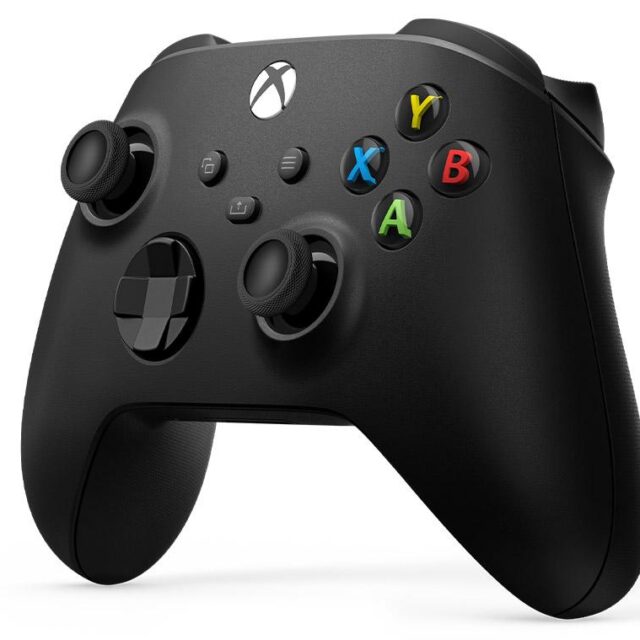
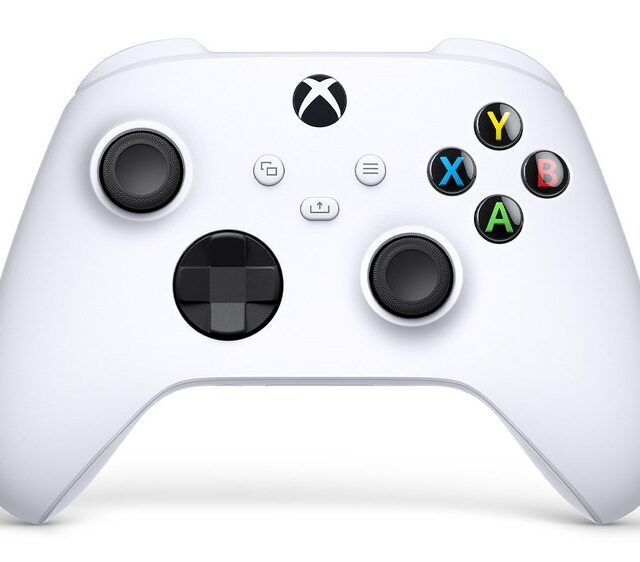
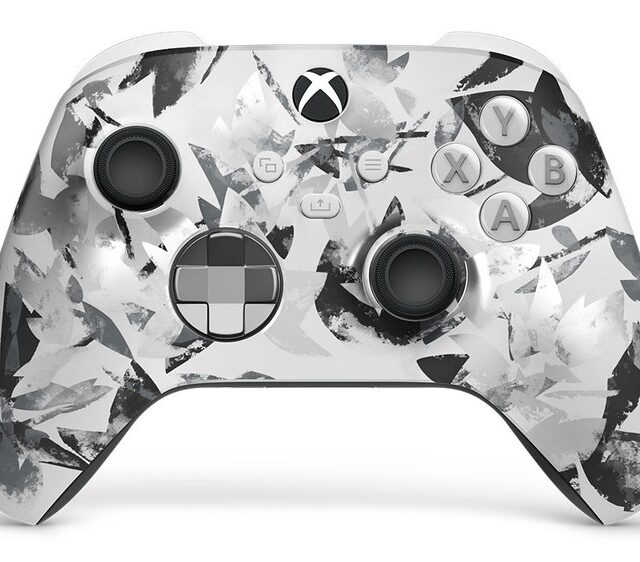
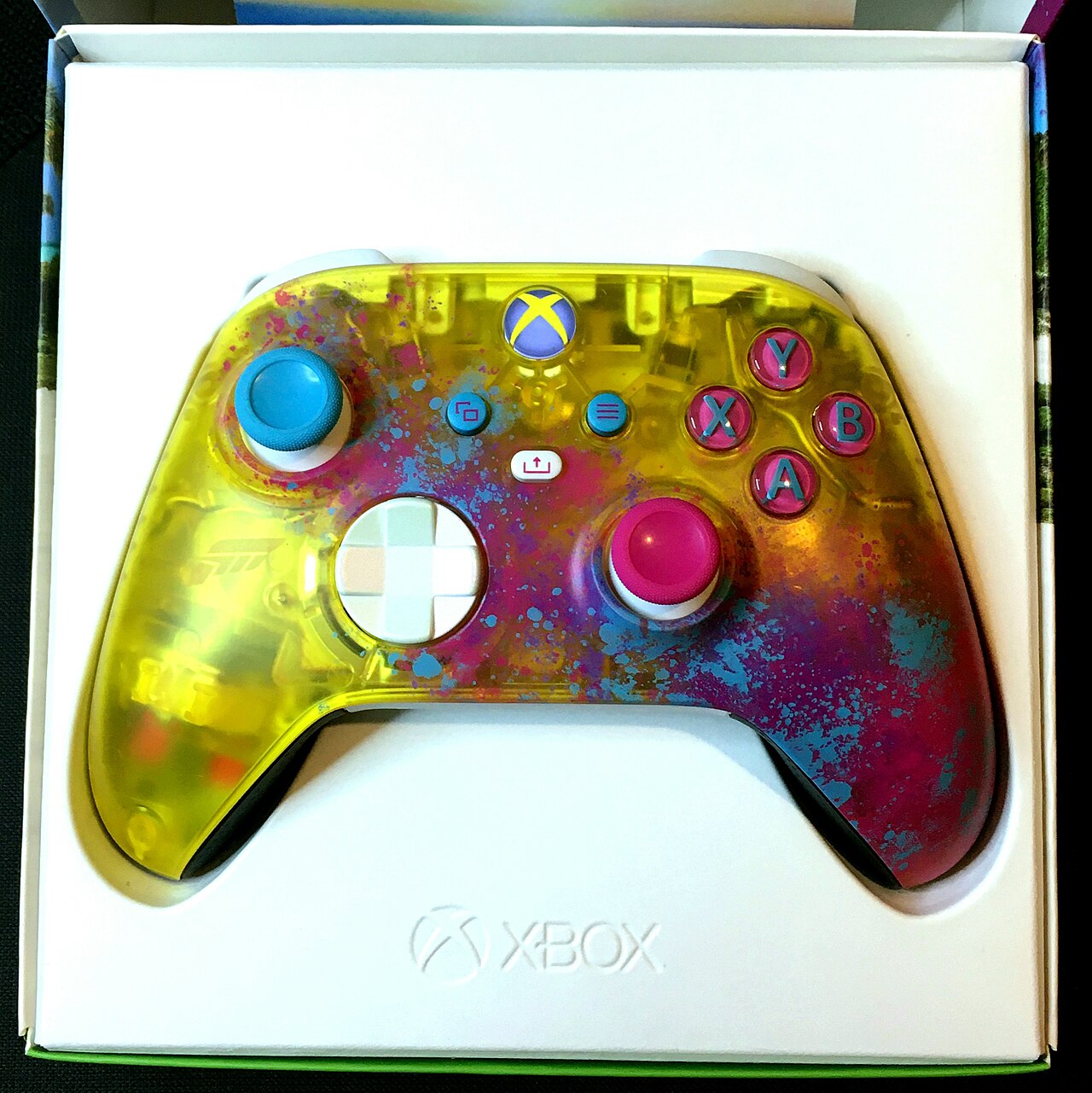
According to Xbox, the current Xbox Wireless Controller uses Xbox Wireless to connect to consoles and Bluetooth to connect wirelessly to Windows 10/11 PCs, phones and tablets. It also has a USB-C port. That gives you three ways onto a PC:
- USB-C cable: the simplest and most reliable. Plug in and play.
- Bluetooth: wireless, using your PC’s built-in Bluetooth or a USB Bluetooth dongle.
- Xbox Wireless Adapter for Windows: Microsoft’s own USB adapter, which uses the same Xbox Wireless connection as the console.
Method 1: connect with a USB-C cable
- Plug a USB-C cable into the top of the controller and a USB port on your PC.
- Windows should recognise it automatically. The Xbox button will light up.
- Open a game, or open Steam, and start playing.
Make sure your cable carries data and isn’t a charge-only lead, as that’s one of the most common reasons a wired controller isn’t detected. A wired connection is also the one to use if you want to remap buttons on PC: Xbox says the Xbox Accessories app on Windows 10/11 needs a compatible USB-C cable.
Method 2: connect with Bluetooth
- Make sure the controller has charge, then press the Xbox button to turn it on.
- Press and hold the small pair button on the top of the controller until the Xbox button starts flashing quickly.
- On your PC, open Settings, then Bluetooth & devices, then Add device, and choose Bluetooth.
- Select Xbox Wireless Controller from the list. The Xbox button will stay lit once it’s connected.
Bluetooth is convenient, but it has limits. You can’t use a headset plugged into the controller’s 3.5mm jack over Bluetooth, and older or cheaper Bluetooth adapters can be more prone to interference or lag. If you only play the odd game with a pad, it’s fine. If you play a lot, consider a cable or the Xbox Wireless Adapter.
Method 3: the Xbox Wireless Adapter for Windows
Microsoft also sells the Xbox Wireless Adapter for Windows, a small USB stick that connects using Xbox Wireless, the same technology as the console. You pair it much like a console: press the button on the adapter, then hold the pair button on the controller until they connect. It’s the best route if you want wireless play with the controller’s headset jack working, or want to connect more than one controller. The downside is the extra cost.
Which should you choose?
- Desk setup, PC right next to you: use a USB-C cable. It’s the cheapest and most dependable option, and it charges the controller as you play.
- Playing from the sofa on a TV-connected PC: Bluetooth will do the job. Upgrade to the Xbox Wireless Adapter if you hit dropouts or want headset audio through the pad.
- Several players or a controller headset: the Xbox Wireless Adapter is the one to go for.
Sorting out power: AA batteries or rechargeable?
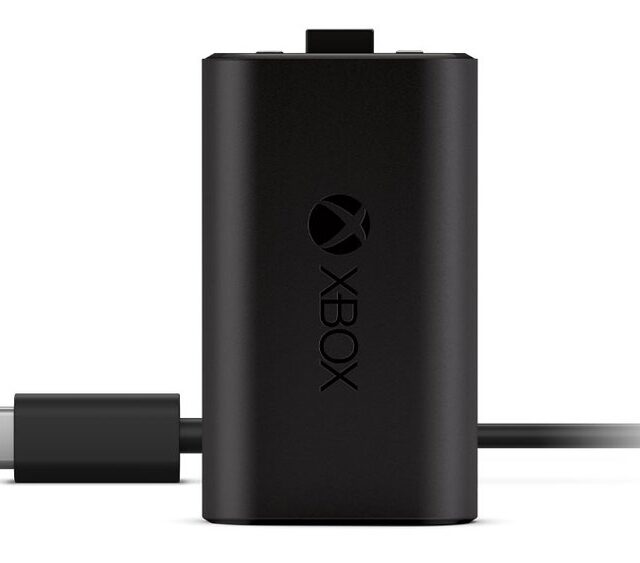
Out of the box, the Xbox Wireless Controller runs on AA batteries, and Xbox quotes up to 40 hours of battery life. That figure varies a lot with headsets and accessories. If you’d rather not keep buying AAs, Microsoft’s Xbox Rechargeable Battery + USB-C Cable replaces them. According to the official listing, it charges fully in under four hours and you can charge it while you play. It only works with Xbox Wireless Controllers that have a USB-C port. Check the price: Xbox Rechargeable Battery + USB-C Cable on Amazon UK.
Troubleshooting
- Not detected over USB: try a different cable and a different USB port, ideally one directly on the PC rather than a hub.
- Won’t pair over Bluetooth: remove any old Xbox Wireless Controller entries from your Bluetooth list, then pair again. Make sure the controller isn’t still connected to a nearby console.
- Keeps disconnecting: move closer to the PC, keep the Bluetooth adapter clear of USB 3 ports and metal cases where possible, or switch to a cable.
- Buttons wrong in a game: check the game’s own controller settings, and in Steam check whether Steam Input is turned on for that game.
- Still stuck: update the controller’s firmware through the Xbox Accessories app, using a USB-C cable.
Want something different?
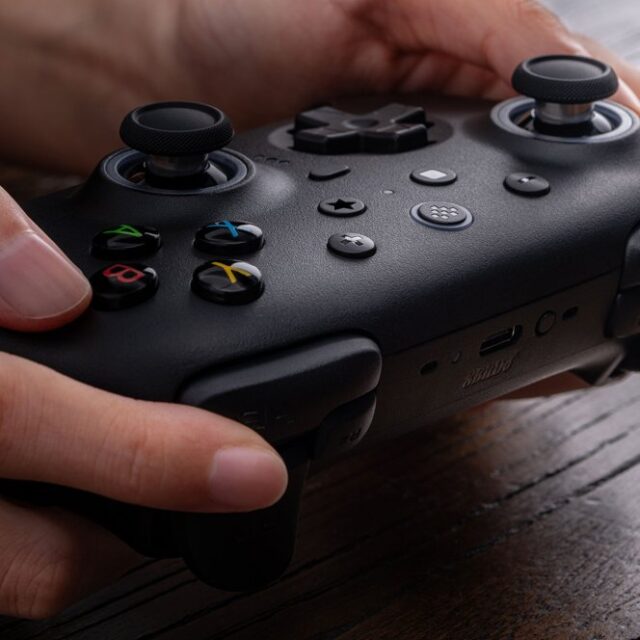
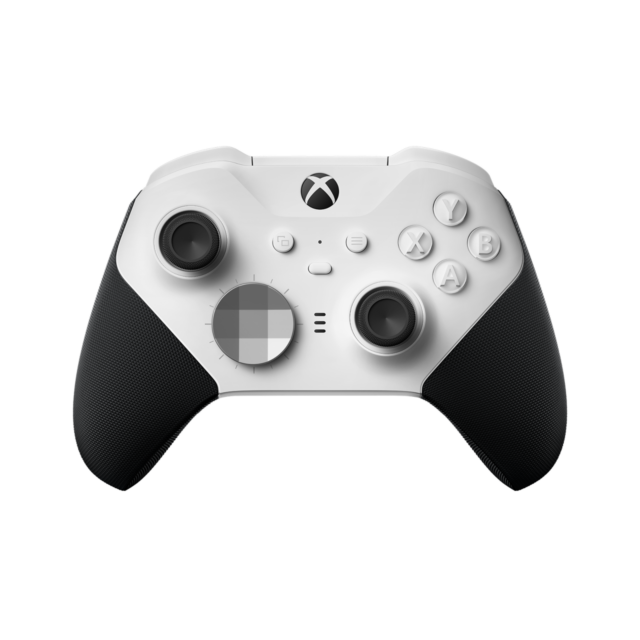
If you want extra features on PC, such as back buttons or a charging dock, the 8BitDo Ultimate 2 Wireless uses an Xbox-style layout. According to 8BitDo, it connects to Windows over its own 2.4G adapter or by cable, with a charging dock, TMR thumbsticks, Hall effect triggers and two back paddles. Note that it uses Bluetooth for Android and Apple devices rather than Windows. If you’re weighing up a more premium Xbox pad, our Xbox Wireless Controller vs Elite Series 2 Core comparison covers the differences.
Finish the setup
Kitting out your gaming PC? Our gaming headset guide for Xbox and PC and our Logitech G213 vs SteelSeries Apex 3 TKL keyboard comparison cover the rest of the desk. Peripherals often drop in price in November, so keep an eye on our deals hub too. Any road, once it’s set up, you’ll wonder why you didn’t do it sooner.
Shop the picks
These are available in the TrueNorth Tech X shop: