As an Amazon Associate, TrueNorth Tech X earns from qualifying purchases. Read our affiliate disclosure.
Whether you’re checking a game’s minimum specs, hunting for the right driver or wondering if it’s time for an upgrade, the first question is the same: what graphics card is actually in this thing? Good news, you don’t need to open the case. Here’s how to check what graphics card you have in Windows 11, using tools that are already built in.
Quick answer
- Fastest: press Ctrl + Shift + Esc, open Performance and select GPU. The card’s name is in the top-right corner.
- From Settings: Settings > System > Display > Advanced display, then look under Display information.
- Most detail: run
dxdiagand open the Display tab. - Seeing “Microsoft Basic Display Adapter”? Windows is using a generic driver, so install the proper one.
1. Task Manager (the quickest way)
Right-click the Start button and choose Task Manager, or press Ctrl + Shift + Esc. Select Performance, then pick GPU from the list (it’s usually near the bottom). Microsoft says the GPU’s details appear in the top-right corner of that pane. It’s a handy spot because you also get live usage graphs, so you can see whether your card is working flat out in a game.
If you see both GPU 0 and GPU 1, your PC has two graphics processors. That’s common on gaming laptops, which pair the processor’s built-in graphics with a separate, more powerful card. The more powerful one is usually the one you care about for games.
2. Settings app
Go to Settings > System > Display, scroll down to Related settings and select Advanced display. Microsoft’s guide says your GPU’s make and model are shown under Display information. With more than one monitor, pick the display at the top first, as each screen shows the card it’s connected to.
3. Device Manager
Right-click Start, choose Device Manager and expand Display adapters. Every graphics adapter in the PC is listed there. Microsoft notes that more than one entry means the device has more than one display adapter.
4. DirectX Diagnostic Tool (dxdiag)
For the most detail, right-click Start, choose Run, type dxdiag and press Enter. Open the Display tab and look at the Name field in the Device section. If there’s more than one Display tab, Microsoft explains each one is a different display adapter, so check them all.
What if it says “Microsoft Basic Display Adapter”?
That’s not a graphics card, it’s a generic driver built into Windows. Microsoft says it’s used when the manufacturer’s own driver isn’t installed, and recommends updating to the manufacturer’s driver, trying Windows Update first. Until you do, games may run badly or not at all, and you might be stuck on a lower screen resolution.
On laptops with Intel graphics, Intel says a generic name with no model number can mean you’ll need to look up your processor to identify the exact graphics. AMD and Nvidia cards usually show their full model name once the right driver is in.
Next step: is it time to upgrade?
Once you know your card, compare it with the recommended (not minimum) specs of the games you want to play. If you’re well short, our RX 9060 XT vs RX 9070 XT guide is a good place to start for a modern mid-range card. Don’t forget your power supply, either: our guide to what PSU you need for an RX 9070 XT explains why. And if the whole PC is getting long in the tooth, see our best budget gaming PC guide.
Graphics cards in our shop
Prices change often, so tap Check price for today’s price. We haven’t listed a price here because we only quote prices checked on the day.
Where to buy in the UK
Amazon is handy, but it isn’t the only shop. Specialist stores such as Overclockers UK and Scan are worth checking for PC parts, and Currys stocks plenty of PC kit too. Compare price, delivery and returns before you buy.
Verdict
Task Manager is the quickest way to see what graphics card you have, and dxdiag gives you the most detail. If any of them says Microsoft Basic Display Adapter, sort the driver out before you blame the hardware. The steps here follow Microsoft’s and Intel’s own support pages. See how we test and choose products.
FAQ
How do I check what graphics card I have in Windows 11?
Open Task Manager with Ctrl + Shift + Esc, select Performance, then GPU. The card’s name is in the top-right corner. You can also use Settings > System > Display > Advanced display.
Why does my PC show two GPUs?
Many laptops and some desktops have graphics built into the processor as well as a separate graphics card. Task Manager lists them as GPU 0 and GPU 1.
What does Microsoft Basic Display Adapter mean?
It’s a generic Windows driver used when the manufacturer’s driver isn’t installed. Microsoft recommends updating to the manufacturer’s driver, starting with Windows Update.
How do I see how much video memory my graphics card has?
Task Manager’s GPU pane shows dedicated GPU memory, and dxdiag’s Display tab lists memory details too.
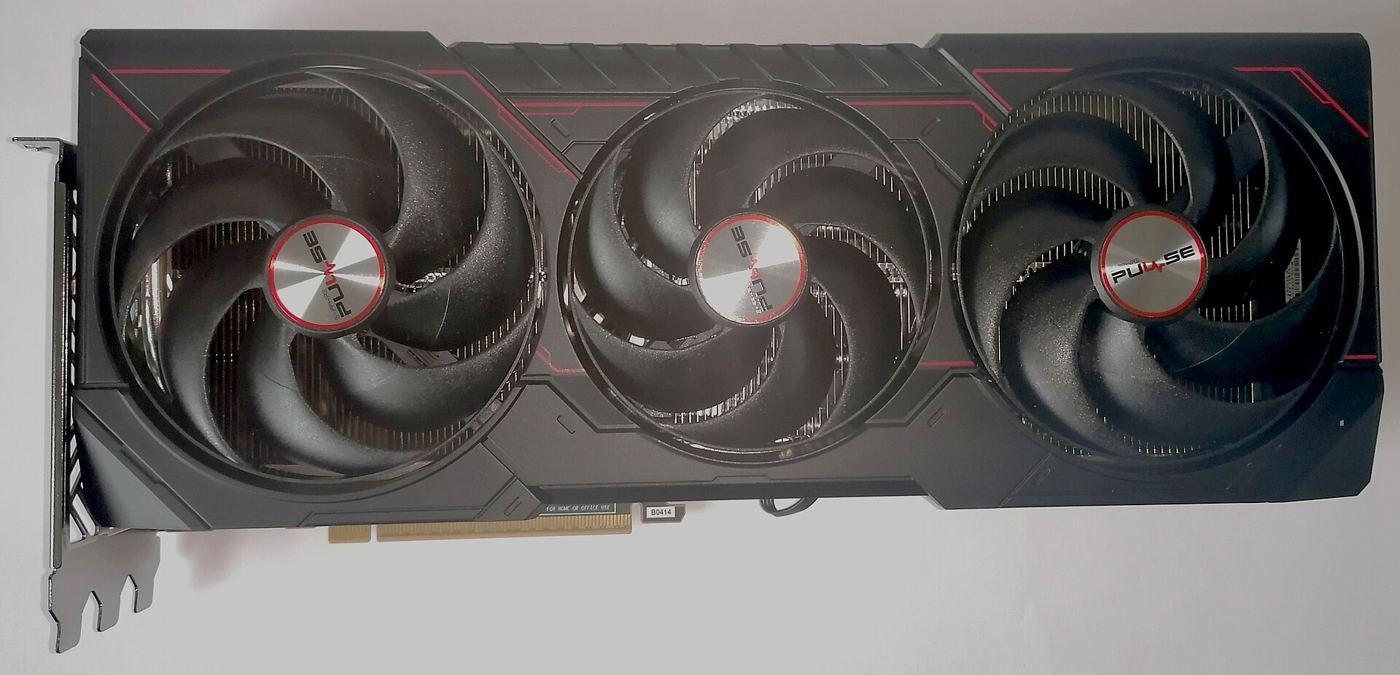
Featured image: Sapphire Pulse Radeon RX 9070 XT, photo by Chaddy via Wikimedia Commons, CC BY-SA 4.0.
Enjoyed this? Follow along for more guides and deals. More guidesXInstagramFacebookWhatsAppTelegram