As an Amazon Associate, TrueNorth Tech X earns from qualifying purchases. Read our affiliate disclosure.
SSDs don’t clunk and grind before they give up like old hard drives did, so it’s worth having a look under the bonnet now and then. Windows 11 has a health check built in, it’s just tucked away where nobody finds it by accident. Here’s how to check SSD health in Windows 11, what the three numbers actually mean, and when you should start worrying.
Quick answer
- Go to Settings > System > Storage > Advanced storage settings > Disks & volumes.
- Select your SSD (the disk, not a volume under it) and choose Properties.
- Look at Drive health: estimated remaining life, available spare and temperature.
- No Drive health section? Windows only reports this for NVMe SSDs, not SATA SSDs or hard drives.

Step by step: find Drive health
Press Windows key + I to open Settings, then go to System > Storage. Under Storage management, open Advanced storage settings and choose Disks & volumes. You’ll see each physical disk with its volumes (your C: drive and so on) listed underneath. Select Properties on the disk itself. That’s the same route Microsoft’s support page gives, and the Drive health details sit on that Properties page.
What the three numbers mean
Microsoft lists three health attributes, and here’s what each one is telling you in plain English.
Estimated remaining life
This is based on the drive maker’s own prediction of how much writing the SSD can take over its life. It starts near 100% and falls as the drive wears. Microsoft notes that the figure stops at 0%, but that reaching it doesn’t automatically mean the drive has failed. Treat a low number as a nudge to plan a replacement, not a countdown to doom.
Available spare
SSDs keep a reserve of spare memory to swap in for cells that wear out. This is the percentage of that reserve still left, from 0% to 100%. A healthy drive should be at or near 100%.
Temperature
The drive’s overall temperature in degrees Celsius. It will climb during big game installs or file copies and drop back when things are quiet. If it’s consistently hot, check your case airflow, or whether your motherboard’s M.2 heatsink is actually fitted.
If Windows shows a warning
Windows can also pop up a notification saying a storage device may be at risk. Microsoft describes three critical warnings you might see on the Properties page:
- Spare capacity is low: the spare reserve has dropped below the maker’s safety threshold.
- Reliability is degraded: because of significant media-related errors or an internal error.
- Drive is set to read-only: you can still read your files, but you can’t write anything new to the drive.
Microsoft’s advice is blunt, and we agree with it: take the message seriously and back up your data straight away. Then plan to swap the drive. Our guide to cloning an SSD to a new drive walks you through moving everything across, so you don’t have to reinstall Windows from scratch.
No Drive health section? Here’s why
If the Properties page doesn’t show Drive health, don’t panic. Microsoft says Windows only monitors NVMe SSDs, not SATA SSDs or hard drives. So an older 2.5-inch SATA SSD or a spinning hard drive simply won’t show it. For those, the drive maker’s own utility is the place to look, as most big SSD brands offer a free one.
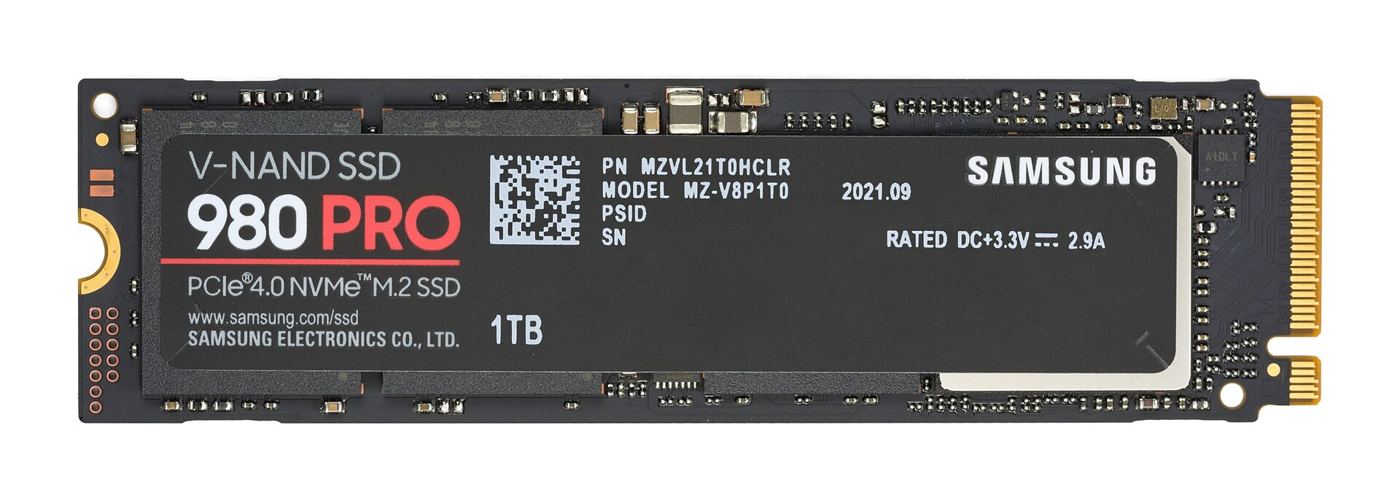
Not sure which type you’ve got? NVMe drives are usually small M.2 sticks that slot straight into the motherboard, like the one in the photo above. Our PCIe 5 vs PCIe 4 SSD guide explains the different kinds in more detail.
Replacement NVMe SSDs in our shop
Prices change often, so tap Check price for today’s price. We only quote prices we’ve checked on the day. Fitting one to a console instead? See our guide to fitting an M.2 SSD in a PS5.
Where to buy in the UK
Amazon is handy, but it isn’t the only shop. Specialist stores such as Overclockers UK and Scan are worth checking for PC parts, and Currys stocks plenty of PC kit too. Compare price, delivery and returns before you buy.
Verdict
Checking SSD health in Windows 11 takes about a minute once you know where Disks & volumes lives, so make it a habit every few months. If any warning appears, back up first and ask questions later. This guide follows Microsoft’s own support documentation; we haven’t tested specific drives for it. See how we test and choose products.
FAQ
How do I check SSD health in Windows 11?
Go to Settings > System > Storage > Advanced storage settings > Disks & volumes, select your SSD and choose Properties. Drive health shows estimated remaining life, available spare and temperature.
Why can’t I see Drive health for my SSD?
Microsoft says Windows only monitors NVMe SSDs, not SATA SSDs or hard drives. Use your drive maker’s own utility for those.
Does 0% remaining life mean my SSD is dead?
Not necessarily. Microsoft notes the figure stops at 0%, and reaching it doesn’t automatically mean the drive has failed. It’s a good time to back up and plan a replacement.
What should I do if Windows warns my drive is at risk?
Back up your data straight away, then plan to replace the drive. Cloning it to a new SSD saves reinstalling everything.
Featured image: Samsung 980 PRO NVMe SSD, photo by D-Kuru via Wikimedia Commons, CC BY-SA 4.0.
Enjoyed this? Follow along for more guides and deals. More guidesXInstagramFacebookWhatsAppTelegram