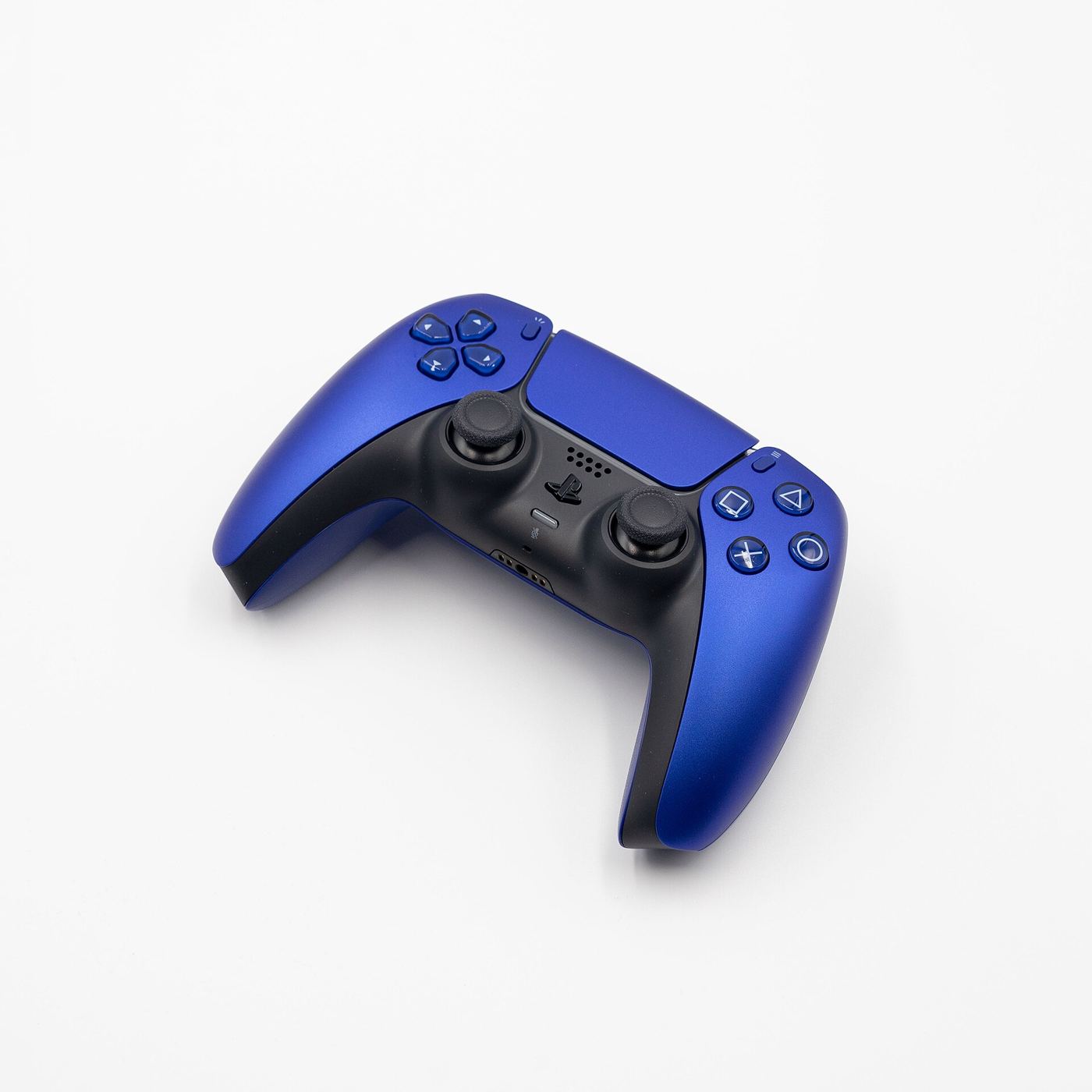
The PS5’s DualSense controller isn’t just for your console. It works on Windows PCs too, over a USB-C cable or Bluetooth. Here’s how to connect a PS5 controller to your PC, which features work, and what to do if it won’t connect, using PlayStation’s own instructions. Got an Xbox pad instead? See our guide on how to connect an Xbox controller to your PC.
See our live Black Friday controller deals.
Quick steps
- Wired: plug the DualSense into your PC with a USB-C cable.
- Bluetooth: hold Create and the PS button until the light bar blinks, then pair it in Windows Bluetooth settings.
- For haptics and the headset jack, use a cable.
- Update it with Sony’s PlayStation Accessories app for PC.
What you need
PlayStation says the DualSense supports Bluetooth and USB connections on Windows 10 (64-bit) and Windows 11. You’ll need either a USB cable with a Type-C connector or a PC with Bluetooth. Most laptops have Bluetooth built in; many desktops need a USB Bluetooth adapter.
Option 1: connect with a USB-C cable
This is the simplest method. Plug a USB-C cable into the controller and a USB port on your PC, and Windows should recognise it. A wired connection also unlocks more features (see below), and it charges the controller while you play.
Option 2: connect over Bluetooth
These steps follow PlayStation’s pairing guide:
- Make sure the controller’s player indicator lights are off. If they’re on, hold the PS button until they turn off, and unplug any USB cable.
- Press and hold the Create button (top left of the touchpad), then press and hold the PS button until the light bar blinks.
- On your PC, open Settings > Bluetooth & devices and choose to add a Bluetooth device.
- Select the controller from the list. PlayStation says the light bar blinks and then the player indicator lights up when pairing is complete.
Which DualSense features work on PC?
PlayStation lists some limits depending on how you connect:
- Haptic feedback needs a USB connection on PC, and the game has to support it.
- Adaptive triggers work when the game supports them.
- The built-in microphone and speaker work on Windows PC when supported by the game.
- The headset jack needs a wired connection.
So if you want the full DualSense experience in supported games, a cable is the way to go.
Using the DualSense with Steam games
PlayStation says controller support can vary from game to game, even when the DualSense is connected. On a game’s Steam store page, look for the ‘Controller Support’ information on the right-hand side, which shows whether it has full or partial controller support. The DualSense also works with games that support generic controllers, and with the PS Remote Play app for streaming from your PS5 or PS4.
Switching between your PC and PS5
PlayStation says each controller can store up to four pairings. To add a pairing to a specific slot, hold an action button and the PS button for more than 5 seconds: triangle for slot 1, circle for slot 2, cross for slot 3 and square for slot 4. After that, holding the same buttons for about 3 seconds switches to that device. To reconnect to your PS5, PlayStation says to plug the controller into the console with a USB cable and press the PS button.
How to update your controller on PC
Sony’s PlayStation Accessories app for Windows lets you update the DualSense’s software from your PC. It’s worth doing if you mainly play on PC, as updates can fix bugs.
If your controller won’t connect
- Check the player indicator is off before you start Bluetooth pairing, and unplug any USB cable.
- Try a different USB-C cable. Some cables only charge and don’t carry data.
- Remove the controller from Windows Bluetooth settings and pair it again.
- If it still won’t connect, PlayStation suggests resetting the controller.
Which controller is best for PC?
The DualSense Wireless Controller is a great choice if you like Sony’s layout and want haptics in supported games. If you prefer an Xbox-style layout, read our 8BitDo Ultimate 2 vs Xbox Wireless Controller comparison. Setting up a new gaming monitor too? See our 4K vs 1440p guide and HDMI 2.1 vs DisplayPort explainer. We haven’t tested every game’s DualSense support ourselves; this guide follows PlayStation’s official instructions. See how we test and choose products.
Related guides: Xbox Wireless Controller vs Elite Series 2 Core.
FAQ
Related: DualSense Black Friday UK deals.
Can I use a PS5 controller on PC?
Yes. PlayStation says the DualSense works with Windows 10 (64-bit) and Windows 11 over USB or Bluetooth.
Does haptic feedback work on PC over Bluetooth?
No. PlayStation says haptic feedback on PC requires a USB connection, and the game must support it.
How do I put a DualSense in pairing mode?
Hold the Create button, then press and hold the PS button until the light bar blinks.
How do I reconnect my DualSense to my PS5?
Connect it to the console with a USB cable and press the PS button. You can then unplug it and play wirelessly.
Featured image: DualSense Wireless Controller Cobalt Blue, photo by Sonson2 via Wikimedia Commons, CC0.
Enjoyed this? Follow along for more guides and deals. More guidesXInstagramFacebookWhatsAppTelegram