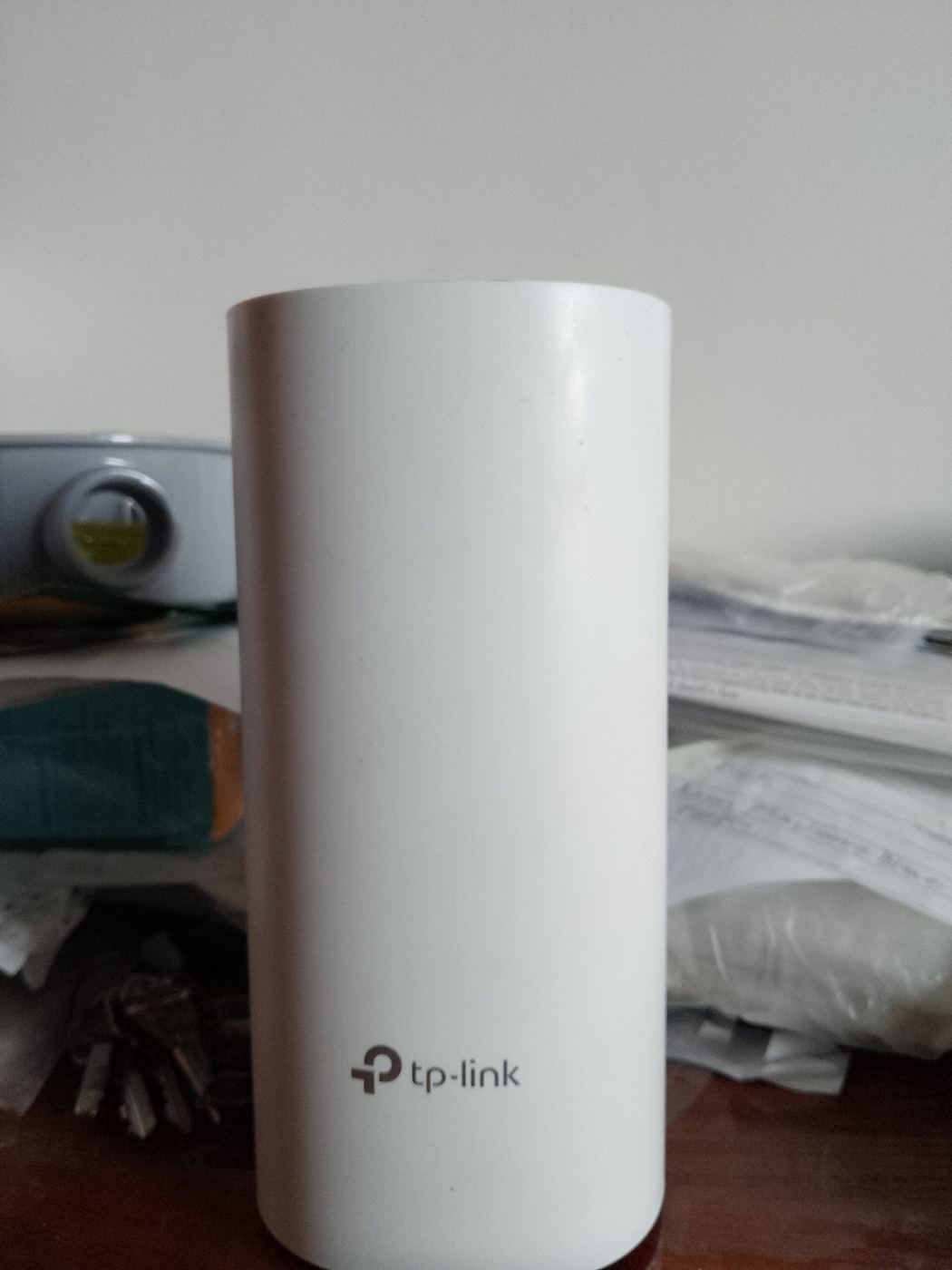
Got a Wi-Fi dead zone in the back bedroom, or a garden office that keeps dropping out? A mesh system is usually the fix. Instead of one router trying to cover the whole house, you get two or three units that work together as one network. Setting one up is easier than it looks, but a few choices along the way make a big difference. Here’s how to set up a mesh Wi-Fi system with a typical UK broadband hub, step by step.
Quick checklist
- Plug the main unit into your broadband hub with an Ethernet cable. It can’t connect wirelessly.
- Choose router or access point mode so you don’t end up with two routers fighting.
- Place satellites halfway between the main unit and the dead zone, not in it.
- Keep units in the open, off the floor and away from metal, microwaves and fish tanks.
- Turn off your hub’s own Wi-Fi so devices don’t connect to the wrong network.
- Secure it: strong password, automatic updates on, remote access off if you don’t need it.
Step 1: Connect the main unit to your hub
Your mesh system won’t replace your broadband connection. It plugs into the hub or router your provider gave you. Use an Ethernet cable from a spare port on your hub to the main mesh unit. TP-Link is clear that the main Deco unit must always be wired to your modem, router or internet cable, as it can’t connect to an existing router wirelessly. eero’s set-up works the same way.
Then download the maker’s app, such as the Deco app or the eero app, and follow its set-up steps. The app finds the unit, creates your network name and password, and walks you through adding the others.
Step 2: Router mode or access point mode?
This is the step most guides skip. Your provider’s hub is already a router, and by default your mesh system will be one too. Two routers in a row cause what’s called double NAT, which TP-Link says can cause connectivity and performance problems.
You have two clean options:
- Put your hub in modem or bridge mode and let the mesh do the routing. TP-Link recommends this for combined modem routers. On Virgin Media, for example, Virgin’s help page explains how to switch the Hub to modem mode, though it notes modem mode isn’t available on the Hub 5x.
- Put the mesh in access point mode and let your hub keep routing. TP-Link’s access point guide shows how to do this in the Deco app, under More, Advanced, then Operation Mode. Good if your hub can’t be bridged.
Not every UK provider handles this the same way. eero has a UK and Ireland ISP guide with provider-specific set-ups for the major UK broadband companies, which is worth checking even if you have a different brand of mesh.
Step 3: Place the satellite units
Placement makes or breaks a mesh system. The key rule, from eero’s placement guide: don’t put a satellite in the dead zone. Put it halfway between the main unit and the dead zone, so it gets a strong signal to pass on. eero suggests placing units 20 to 30 feet apart (roughly 6 to 9 metres), and no more than 50 feet (about 15 metres).
- Keep it open: not inside a TV cabinet or behind the sofa. Both TP-Link and eero say this.
- Avoid interference: eero lists microwaves, fridges, metal furniture, mirrors and fish tanks among the things that weaken Wi-Fi. TP-Link adds Bluetooth and USB 3.0 devices.
- Mind the walls: brick, stone and older plaster-and-lath walls are hard for Wi-Fi to get through. Very solid homes may need an extra unit.
- Get the height right: eero suggests halfway between floor and ceiling. TP-Link’s Deco placement guide suggests keeping satellites at the same height as the main unit, about 1 to 1.5 feet off the floor.
Then check the connection. In the Deco app, TP-Link says to tap the satellite to see its signal strength from the main unit, and recommends at least two bars. If it’s weak, move it a bit closer and check again.
Can you use Ethernet between units?
Yes, and it’s the best option if you can. Both TP-Link and eero say a wired link between units, called Ethernet backhaul, is faster and more stable than a wireless one. If you already have Ethernet cables in the walls, use them.
Step 4: Turn off your hub’s Wi-Fi
If your hub still broadcasts its own Wi-Fi, your phone and laptop might cling to it instead of the mesh. TP-Link recommends switching off the existing router’s Wi-Fi and using the mesh network instead, to reduce interference. It also warns against giving both networks the same name. You’ll usually find the option in your hub’s settings page or app.
Step 5: Secure your new network
A new network is a good moment to tighten security. The National Cyber Security Centre’s advice for smart home kit applies here too:
- Use a strong password, such as three random words, and change any default password.
- Turn on two-step verification for the mesh app account if it’s offered.
- Switch on automatic updates, and install any manual updates when you’re prompted.
- Turn off remote access if you don’t need to manage the network away from home.
Once your Wi-Fi is solid, it’s worth checking the rest of your setup. Our home security camera guide relies on a strong signal by the front door, and our Windows 11 updates explainer covers keeping your PCs patched. Thinking about a new laptop to go with it? See our Chromebook vs Windows laptop guide.
Verdict
Setting up mesh Wi-Fi is mostly about three decisions: wire the main unit to your hub, avoid double NAT by choosing modem or access point mode, and place satellites halfway to the dead zone rather than in it. Get those right, switch off your hub’s Wi-Fi, and lock the network down with a strong password and automatic updates. This guide is based on TP-Link’s and eero’s official set-up advice and the NCSC’s security guidance, not our own lab testing.
FAQ
Do I still need my broadband router with mesh Wi-Fi?
Yes. The main mesh unit plugs into your provider’s hub or router with an Ethernet cable. TP-Link says its main Deco unit can’t connect to an existing router wirelessly.
Where should I put mesh Wi-Fi units?
eero recommends placing satellites halfway between the main unit and the dead zone, about 20 to 30 feet apart and no more than 50 feet, in the open and away from appliances, metal and glass.
Should I turn off my router’s Wi-Fi when using mesh?
TP-Link recommends turning off the existing router’s Wi-Fi to reduce interference, and not giving both networks the same name.
What is double NAT?
It’s when two devices on the same network both act as routers. TP-Link says it can cause connectivity and performance problems. Avoid it by putting your hub in modem or bridge mode, or your mesh in access point mode.
Featured image: TP-Link Deco M4R mesh unit, photo by Willmeial via Wikimedia Commons, CC BY-SA 4.0.