As an Amazon Associate, TrueNorth Tech X earns from qualifying purchases. Read our affiliate disclosure.
Amazon prices change often — check the live listing before you buy.
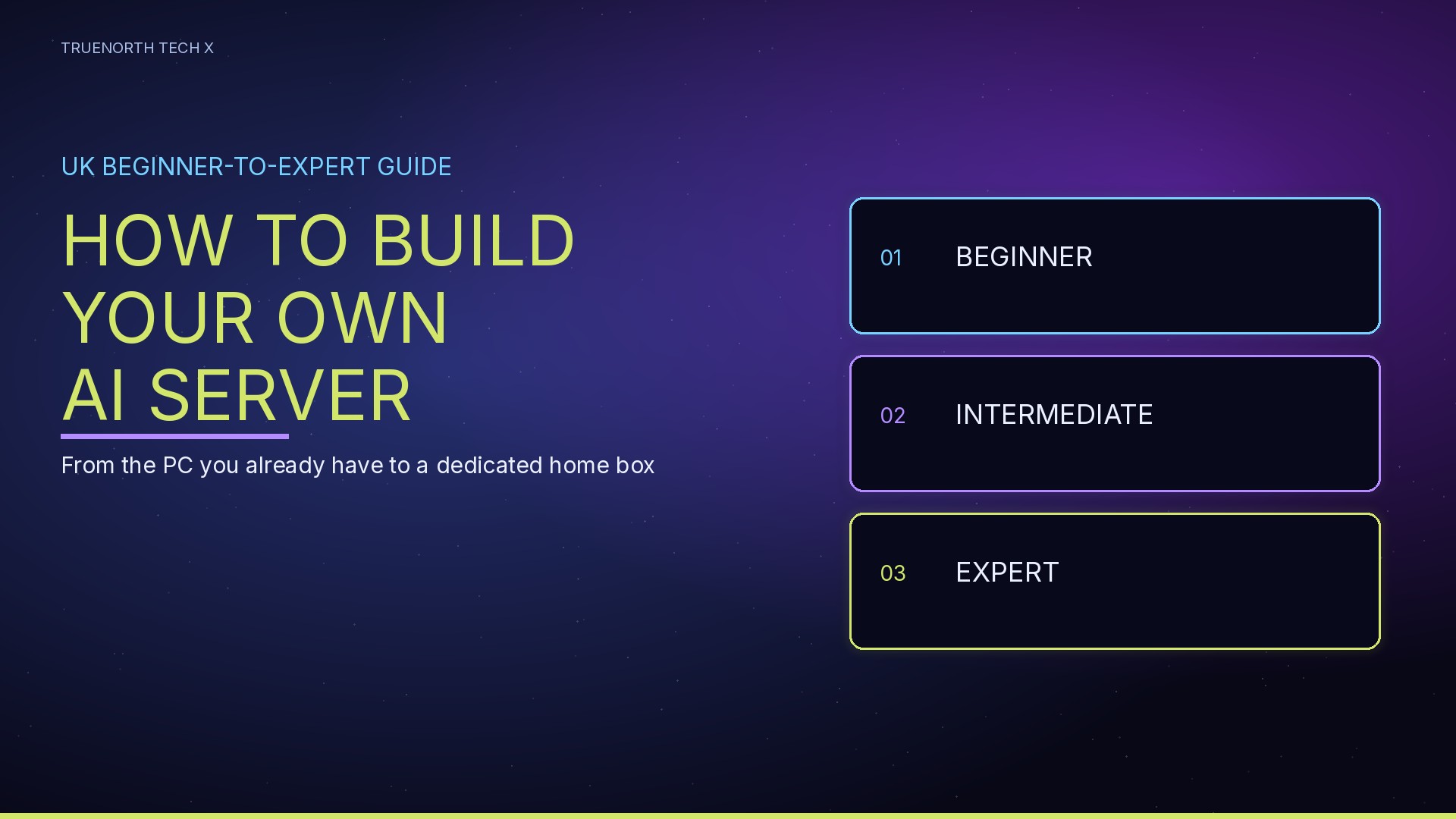
You do not need a rack in the spare room to try local AI. A “home AI server” can start as the PC already on your desk. This UK guide is in three levels: run a model on what you have, then a dedicated box you can reach securely, then the expert layer — serving, electricity cost, heat and security. We have checked the official docs for the tools we name. We have not benchmarked any of this kit, and we will not invent a tokens-per-second figure.
Jump to a section
- Which level are you?
- How an AI server fits together
- Beginner — the PC you already have
- Intermediate — a dedicated home box
- Expert — serving, cost and security
- Budget, mid and beast planning tiers
- Glossary
- FAQ
Which level are you?
Start at the first row that sounds like you. You can stop at beginner for months. That is a perfectly sensible outcome.
How an AI server fits together
At every level the stack is the same idea, even if the beginner version hides some of it behind an app:
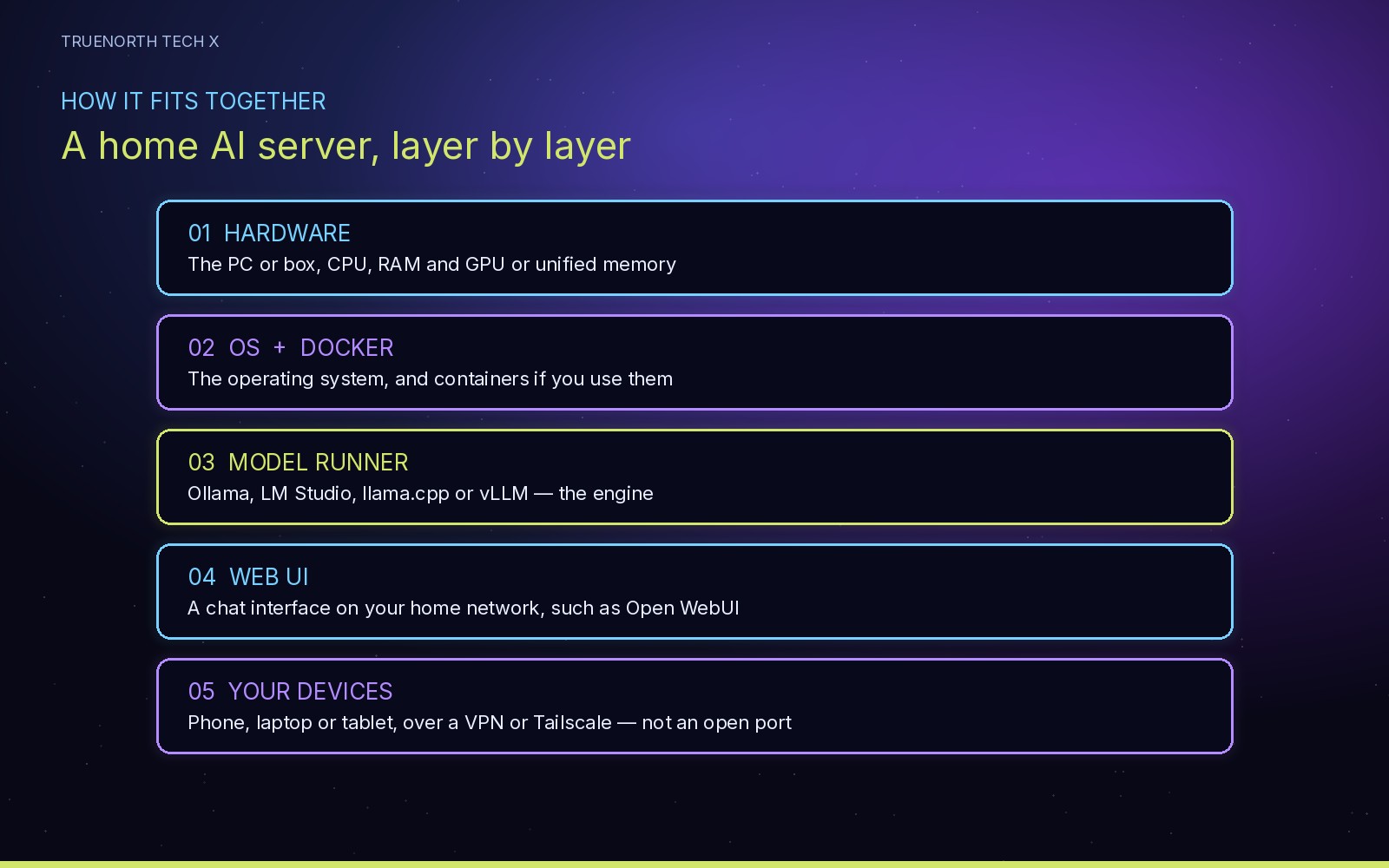
Hardware at the bottom, then the operating system (and Docker if you use it), then a model runner, then a web or desktop UI, then your own devices. The last hop should be a private network — a VPN or Tailscale — not a port opened on your router.
Beginner: run local AI on the PC you already have
The aim here is a chat window on the machine in front of you, with the model files stored locally. Two official starter tools dominate this job: Ollama and LM Studio.
Ollama, and your first official model
Ollama’s official Quickstart (checked 17 November 2026) has you download the app for macOS, Windows or Linux, then run a local first model with no API key. The documented commands are ollama pull gemma4:e2b to download the model, and ollama run gemma4:e2b to download it if needed and start a chat on your computer (type /bye to leave). The same page says the model download is about 7.2GB, and: “We recommend 8 GB of available VRAM, or unified memory on a Mac. Larger context windows need more memory. With less VRAM, Ollama can use system RAM, but responses may be slower.” The local API is on http://localhost:11434.
Ollama does not publish one universal RAM or VRAM minimum for every model. Memory depends on the model, the context window and concurrency. By default it uses a context window of 4,096 tokens, which you can change, and its FAQ says models stay loaded for five minutes after use. The ollama ps command shows whether a loaded model is on the GPU, the CPU, or split between them. That is the honest way to check “did this actually fit?” — not a benchmark chart we have made up.
On the graphics side, Ollama’s hardware page says it supports Nvidia GPUs with compute capability 5.0 or higher and driver version 550 or newer (cards with compute capability 5.0 to 6.2 need 570 or newer). Its Windows page is slightly more specific: Windows 10 22H2 or newer, at least 4GB of space for the binary install plus extra room for models, and Nvidia driver 551.61 or newer if you have an Nvidia card. We are not flattening those two driver figures — they come from two official pages. Check the official Nvidia compute-capability list for your exact GPU. AMD Radeon support is documented via ROCm (Linux needs the ROCm v7 driver, according to that page) and also via Vulkan. We have not tested any of those combinations.
LM Studio, if you prefer an app
LM Studio is a desktop app with a built-in chat interface. Its official system requirements (checked 17 November 2026) are:
- macOS: Apple Silicon (M1, M2, M3 or M4), macOS 14.0 or newer, 16GB+ RAM recommended. It says you may still be able to use it on 8GB Macs if you stick to smaller models and modest context sizes. Intel-based Macs are currently not supported.
- Windows: x64 (AVX2 required) or ARM (Snapdragon X Elite). At least 16GB of RAM is recommended, and at least 4GB of dedicated VRAM is recommended.
- Linux: x64 and ARM64, distributed as an AppImage. Ubuntu 20.04 or newer is required; versions newer than 22 “are not well tested,” in LM Studio’s own words. On x64 it ships with AVX2 support by default.
The same official page says LM Studio can operate entirely offline once you have the model files. Its documentation set also includes a “Chat with Documents” page — useful later if you want to ask questions of your own files, but it is not required for a first chat.
If the first official small model feels slow, that is usually memory or context, not you “doing it wrong.” Do not jump to a 70-billion-parameter download because a forum post said it was fine. Stay with a model the tool itself documents, and only move up when ollama ps (or LM Studio’s own memory display) says you have headroom. We have no first-hand speed figures to quote.
Intermediate: a dedicated home box
Once you are leaving a machine on, or you want to use it from the sofa, treat it as a small home server. The hardware choice is mostly about memory, not about a brand of RGB fans.
GPU choice, by VRAM — not by a made-up league table
Buy the amount of GPU memory the model and context will actually need, then confirm the exact figure on the manufacturer’s spec page. Ollama’s official GPU list includes current Nvidia GeForce RTX 50-series cards and a range of AMD Radeon cards, but it does not replace the vendor’s VRAM number. We are not going to invent one here.
- 8–12GB class: enough for the official small starter models, and a sensible used-card target if the PC you have has almost no dedicated GPU memory.
- 16GB class: more comfortable for a dedicated box that will run mid-size models and a web UI all day.
- 24GB and up, or more than one GPU: the expert end. Ollama’s FAQ says that if a model will fit entirely on one GPU it will use that card, and if not it will be spread across the available GPUs. That is official behaviour, not a performance promise from us.
Used versus new: a used card can be a good way to buy memory rather than cosmetics, but we have not inspected a sample of used UK listings and we will not pretend to have a failure rate. Check that the stated VRAM matches the official spec, that the seller’s return policy is usable, and that you are not paying new-box money for a card with no warranty. For a wider look at UK PC and GPU shopping, see our gaming PC deals page, the Black Friday tech deals hub, our guide to spotting a decent gaming PC deal, the PC parts and upgrades checklist, and our note on spiralling GPU prices. Those pages are about buying kit honestly, not about AI scores.
Mini PCs and Macs
A compact PC is fine if the memory is there. We will not claim that a particular mini PC “runs a 70B model” — that would be invented testing. Look at the official VRAM or, on a Mac, the unified memory, then compare it with the tool’s own recommendation.
On a Mac, LM Studio is explicit: Apple Silicon only, 16GB+ RAM recommended, 8GB only if you keep models and context small. Ollama’s first-model note also points at unified memory on a Mac. An Intel Mac is not a supported LM Studio machine today. If you already have an M-series Mac with 16GB or more, it is a very reasonable intermediate box. If you have 8GB, stay at the beginner level and keep the models small.
Linux, Docker and Open WebUI
Linux is the usual choice for a box that stays on, because it is easy to update and to run containers. Open WebUI’s official quick start says Docker is officially supported and recommended for most users. The documented Docker run maps port 3000 on the machine to 8080 in the container, keeps chats and settings in a named volume, uses host.docker.internal so the container can reach Ollama on the host, and tells you to set a fixed WEBUI_SECRET_KEY (it suggests generating one with openssl rand -hex 32) so that recreating the container does not log everyone out. Follow their current command, not a copied flag list from an old blog post — including this one, if their docs move on.
Safe remote access: Tailscale or a VPN, not an open port
Do not forward 3000 or 11434 from your router to the public internet so you can “just check it from work.” Open WebUI’s official Tailscale tutorial is written around private, encrypted access with “no ports to open.” Tailscale creates a WireGuard-based mesh (a tailnet) between your devices. You install it on the server and on the phones or laptops that should be allowed in, run sudo tailscale up on the server, then open the UI on the tailnet hostname rather than on a public IP. Their tutorial also covers HTTPS with tailscale serve if you want a proper certificate on that private name.
A conventional VPN into your home network is the same idea if you already have one. The principle is the same: only devices you have invited can reach the UI, and the service is not hanging on the open internet.
Expert: serving, cost, heat and security
Multi-GPU and quantisation
Two official behaviours are worth knowing. First, Ollama will keep a model on a single GPU if it fits, and will spread it if it does not. Second, vLLM’s quantisation documentation puts the trade-off in one sentence: “Quantization trades off model precision for smaller memory footprint, allowing large models to be run on a wider range of devices.” vLLM lists supported formats including AutoAWQ, BitsAndBytes, GPTQModel, GGUF, and FP8, INT8 and INT4 variants via LLM Compressor. The same page publishes a Supported Hardware compatibility table, and it also shows a vllm serve command. Support depends on the GPU generation. We have not run those comparisons ourselves, and we are not pasting a full serve recipe here — use their current docs.
llama.cpp describes itself as LLM inference in C/C++ with minimal setup on a wide range of hardware. Its official README shows a quick start that downloads a GGUF model and can launch an OpenAI-compatible API with llama serve. It also points to a multi-GPU usage guide. We did not fetch that second document, so we will not paraphrase its steps here.
Serving with vLLM or llama.cpp, and RAG
When a simple “one user, one chat box” setup is no longer enough, a dedicated server such as vLLM or llama serve is the usual next step. Use the project’s own current docs for the install and the serve command — they change. Do not treat our wording as a substitute for the official quick start.
RAG (retrieval-augmented generation) means the model can be given passages from your own documents at question time, instead of relying only on what is in its weights. Open WebUI’s official quick start documents a “Basic RAG” path: chat with your own documents, in a chat or as a knowledge base. For its slim image it names an embedding provider of Ollama, OpenAI or Azure OpenAI. LM Studio’s documentation set includes “Chat with Documents” as well. That is the official shape of the feature. We have not measured accuracy on a UK document set, so we will not promise that it “just works” on your PDF pile.
Power draw and UK electricity cost
For the cap period 1 October to 31 December 2026, Ofgem’s official unit-rate page (checked 17 November 2026) gives an average Direct Debit electricity rate, for England, Scotland and Wales, of 26.32 pence per kWh, with a daily standing charge of 54.83 pence. Figures are rounded to two decimal places. There is no VAT on electricity from 1 October 2026 to 31 March 2027. Your actual unit rate depends on your region and how you pay. The standing charge is already there for the household supply — do not add it again as if the server invented it, unless this box is the reason you have a second meter.
The maths, using that average cap unit rate of 26.32p (£0.2632) per kWh:
Cost in £ = (watts ÷ 1,000) × hours × 0.2632
These are worked examples for a hypothetical wall-draw. They are not measurements from a box in our office, and they are not a card’s TDP from a vendor page. The wall figure is usually higher than a GPU’s official board power, because the rest of the system and the PSU’s inefficiency count too.
- If the whole system used 200W at the wall for one hour: 0.2 × 0.2632 = £0.053 (about 5p).
- If it used 300W for one hour: 0.3 × 0.2632 = £0.079 (about 8p). Left at that draw for 24 hours: 7.2 kWh × 0.2632 = £1.90 that day, or about £57 over 30 days.
- If it used 500W for one hour: 0.5 × 0.2632 = £0.132 (about 13p). The same draw for 24 hours would be £3.16 that day, or about £95 over 30 days.
Read the watts off a plug-in meter if you care about the real number. Until you do, treat every “it will only cost you a few quid” claim — including any rounding in the examples above — as arithmetic, not a test.
Noise, heat and security
A card that is working will move air and shed heat. We have no decibel readings to publish. Put the box where you can live with fan noise, give it space to exhaust, and do not leave it on a carpet in a closed wardrobe. If the room gets uncomfortably warm, that is your cooling answer, not a model setting.
On security, keep it boring and tight:
- Do not open WAN ports for the UI or for Ollama. Use Tailscale or a VPN, as above.
- Leave Open WebUI authentication on, and set a fixed secret key as their docs describe.
- Keep the OS, Docker engine, GPU driver and the AI tools updated.
- Do not point a home model at private documents you would not leave on that machine, and think before you enable any “agent” or terminal feature that can run commands.
- A home server is still a server. It is on your household network. Treat it with the same caution you would give a small NAS.
Budget, mid and beast: planning tiers in pounds
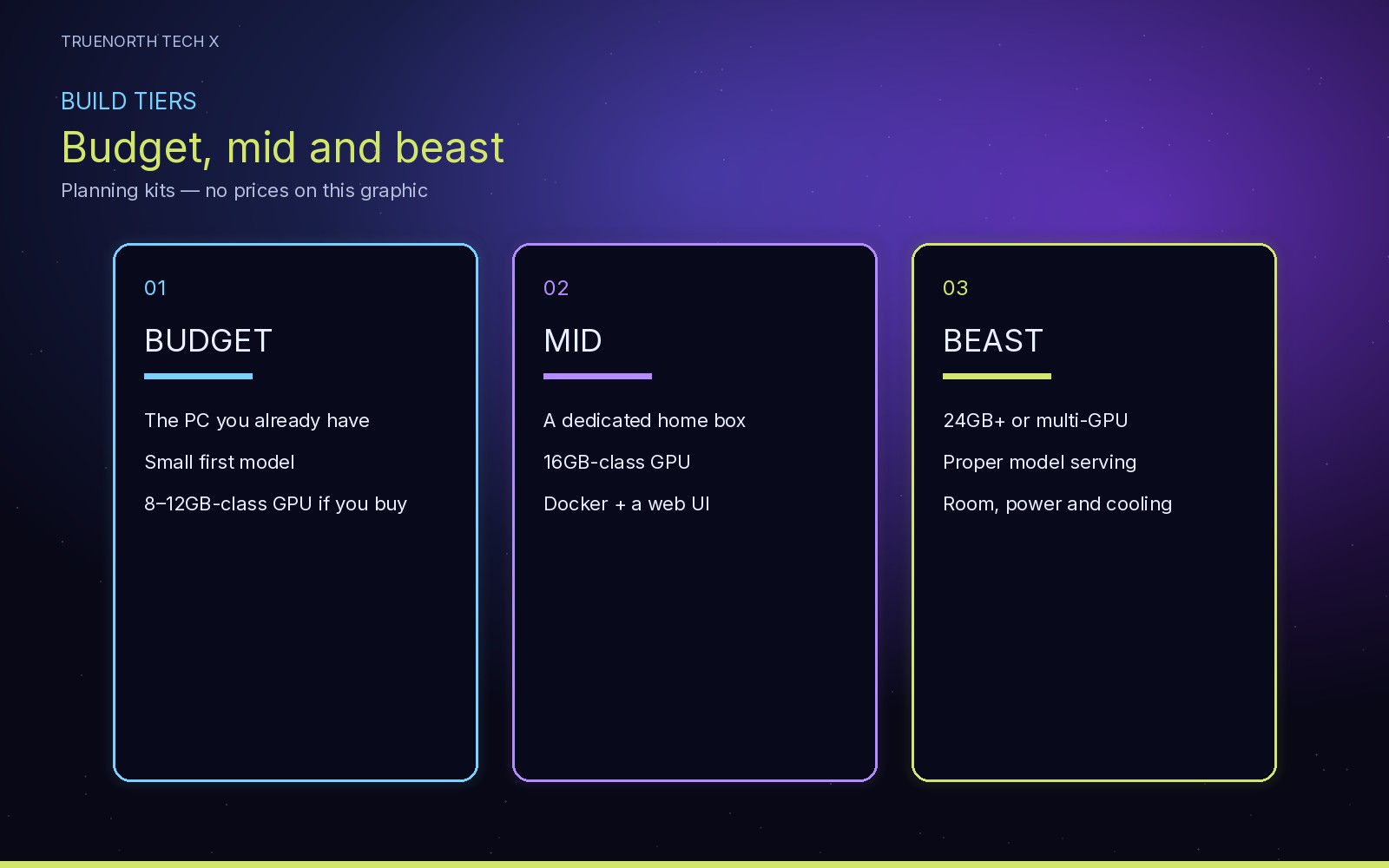
The pound figures below are planning bands, not prices we have checked today, and not a promise that a particular card is in stock. Amazon links are search results, because we do not have a verified ASIN for a specific current GPU in this guide. They use the usual “Check price” wording. We did not have a verified Box.co.uk link, so Box is left out rather than guessed.
If you are also shopping for a whole machine, our best budget gaming PC guide and the deals pages above are the place to compare kit — again, as PCs, not as official AI appliances.
Where to buy in the UK
Amazon links are above. For specialist UK retailers, it is also worth checking Overclockers UK, Scan and Currys for GPUs, memory and complete PCs — particularly if you would rather collect in store or use a shop you already know. We have not added links for those three here. Compare the live price, stock, warranty and returns before you buy.
Glossary
- VRAM: dedicated memory on a graphics card. Official model-fit advice is usually about VRAM (or unified memory on a Mac).
- Unified memory: on Apple Silicon, system memory shared by the CPU and GPU.
- Context window: how much recent text the model can consider at once, measured in tokens. Ollama’s default is 4,096. Longer context uses more memory.
- Token: a chunk of text the model reads or writes. It is not exactly a word.
- Quantisation: storing model weights in a lower-precision format so they take less memory, at some cost to precision. vLLM documents this trade-off officially.
- GGUF: a model-file format used in the official llama.cpp quick start, and listed among vLLM’s supported formats.
- Model runner: the engine that loads the weights and produces replies — Ollama, LM Studio, llama.cpp or vLLM in this guide.
- RAG: retrieval-augmented generation — fetching passages from your documents and feeding them to the model with the question. Open WebUI documents a basic RAG / knowledge-base path.
- Tailnet: your private Tailscale network. Devices on it can reach each other without you opening a router port.
FAQ
Do I need a dedicated AI server to run a local model?
No. Start on the computer you already have. Ollama’s official Quickstart runs a local first model (gemma4:e2b, about 7.2GB) and recommends 8GB of available VRAM, or unified memory on a Mac. With less VRAM it can use system RAM, but it says responses may be slower. LM Studio recommends at least 16GB of RAM (and 4GB of dedicated VRAM on Windows).
How much RAM and VRAM do I need?
There is no single official number that covers every model. Ollama’s documentation does not publish a universal RAM or VRAM minimum: it depends on the model, context length and how many requests you run at once. Use the tool’s own recommendation for the first model, then check ollama ps (or the equivalent in LM Studio) to see whether the model fitted in GPU memory. Always confirm a card’s VRAM on the manufacturer’s spec page.
Is it safe to open a port so I can use my home AI server away from home?
We recommend you do not. Open WebUI’s official Tailscale tutorial is written around private access with no ports to open. Put the server and your devices on a VPN or a Tailscale tailnet, keep the web UI’s authentication switched on, and do not expose Ollama’s local port (11434) or the UI to the public internet.
How much electricity does a home AI server use in the UK?
It depends on the wall-draw of your kit, which we have not measured. For the cap period 1 October to 31 December 2026, Ofgem’s average Direct Debit electricity unit rate in England, Scotland and Wales is 26.32p per kWh (no VAT on electricity in that period, checked 17 November 2026). Cost in pounds = (watts ÷ 1000) × hours × 0.2632. The daily standing charge (54.83p on that average) is paid for the household supply anyway, so do not add it again as if the server created it. Regional rates vary.
Sources, all fetched 17 November 2026: Ollama Quickstart, Ollama FAQ, Ollama hardware support, Ollama for Windows, LM Studio system requirements, Open WebUI quick start, Open WebUI Tailscale tutorial, vLLM quantisation, llama.cpp README, and Ofgem energy price cap unit rates for 1 October to 31 December 2026.
Enjoyed this? Follow along for more guides and deals. More guidesXInstagramFacebookWhatsAppTelegram