Your graphics card and monitor probably have both HDMI and DisplayPort sockets, so which should you use for gaming? The answer depends on what you’re plugging into, and on which version each device supports. Here’s a plain-English guide to HDMI 2.1 vs DisplayPort, based on the official specifications from the HDMI Forum and VESA.
See our live Black Friday monitor and console deals.
Quick answer
- Gaming PC to a monitor: use DisplayPort if your monitor has it. It’s what most PC monitors and graphics cards are built around.
- Gaming PC or console to a TV: use HDMI 2.1. TVs and consoles use HDMI.
- Either way: use the right certified cable, or you may not get the full bandwidth.
- Check the version: both ports look the same across versions, so check what your devices support.
Quick comparison
HDMI 2.1 vs DisplayPort 2.1 at a glance
| HDMI 2.1 | DisplayPort 2.1 | |
|---|---|---|
| Maximum bandwidth | Up to 48Gbps with an Ultra High Speed HDMI cable | Up to 80Gbps (UHBR20) with a DP80 cable |
| Cable to look for | Ultra High Speed HDMI | VESA-certified DP40 or DP80 |
| Variable refresh rate | HDMI VRR | AdaptiveSync (basis of AMD FreeSync) |
| Other gaming features | ALLM, QFT, QMS | Display Stream Compression, Multi-Stream Transport |
| Audio | eARC for soundbars and AV receivers | Audio carried alongside video |
| Also carried over | N/A | USB-C (Alt Mode), Thunderbolt and USB4 |
| Typical use | TVs, consoles, many monitors | PC monitors and graphics cards |
Bandwidth: why it matters
Bandwidth decides how many pixels and frames per second a cable can carry. Higher resolutions and refresh rates need more of it. Our 4K vs 1440p guide explains why 4K has 2.25 times as many pixels as 1440p, and every one of those pixels has to travel down the cable many times a second.
According to HDMI.org, the Ultra High Speed HDMI Cable introduced with HDMI 2.1 supports up to 48Gbps. VESA says DisplayPort 2.1 supports up to 80Gbps with DP80 cables (UHBR20) and up to 40Gbps with DP40 cables (UHBR10). That’s far more than most gaming setups need today.
Compression can stretch that bandwidth further. VESA says Display Stream Compression (DSC) is mandatory in DisplayPort 2.1, and describes it as visually lossless.
Variable refresh rate and gaming features
Variable refresh rate (VRR) matches your screen’s refresh rate to your game’s frame rate, reducing tearing and stutter. HDMI 2.1 includes its own VRR, plus Auto Low Latency Mode (ALLM), which switches a TV into its low-lag mode automatically, and Quick Frame Transport (QFT) for lower latency. VESA’s FAQ says DisplayPort has supported AdaptiveSync since version 1.2a, and that AMD’s FreeSync is based on it.
In practice, which VRR technology works depends on your graphics card, monitor or TV, and their drivers, so check the specs of your own kit.
Which to use for each setup
Gaming PC and monitor
DisplayPort is the usual choice. VESA says it was developed as the next-generation PC display interface, and it can drive several monitors from one connection using Multi-Stream Transport. Many monitors also have HDMI 2.1, which works well too, so check which port supports your monitor’s full refresh rate. Browse PC peripherals in our shop.
Gaming PC and TV
TVs use HDMI, so you’ll need an HDMI 2.1 port on both your graphics card and your TV for features like 4K at 120Hz. See our OLED vs Mini LED TV guide if you’re choosing a TV for gaming.
Consoles
The PS5 and Xbox Series X|S connect over HDMI, so DisplayPort isn’t an option. To get the most from them, use an HDMI 2.1 port on your TV or monitor. Our Xbox Series S vs Series X guide covers the consoles in more detail, and our best 4K monitor for PS5 guide picks screens with HDMI 2.1.
Laptops
Many laptops output DisplayPort over USB-C, Thunderbolt or USB4, which VESA says all support DisplayPort. A USB-C to DisplayPort cable can connect a laptop straight to a monitor if the port supports video output.
Cables: the easy mistake to avoid
An old cable can quietly limit you. For HDMI 2.1 speeds, HDMI.org says to use an Ultra High Speed HDMI Cable. For DisplayPort, VESA recommends certified DP80 cables for full UHBR20 performance, and says DP40 cables are fine at lower rates. Newer HDMI 2.2 and its Ultra96 cable raise HDMI’s ceiling to 96Gbps, but you don’t need them for today’s gaming setups.
Verdict
For a gaming PC and monitor, use DisplayPort where you can: it has the most bandwidth headroom and is built for PC displays. For TVs and consoles, HDMI 2.1 is the only real choice, and it’s more than capable. Whichever you use, a certified cable matters as much as the port. We haven’t tested specific cables or displays for this guide; it’s based on HDMI.org’s and VESA’s official specifications. See how we test and choose products.
FAQ
Is DisplayPort better than HDMI for gaming?
For PC monitors, usually yes: DisplayPort 2.1 offers up to 80Gbps with DP80 cables, against HDMI 2.1’s 48Gbps. For TVs and consoles, HDMI 2.1 is the standard.
Do I need a special cable for HDMI 2.1?
Yes. HDMI.org says to use an Ultra High Speed HDMI Cable to get HDMI 2.1’s full bandwidth.
Does DisplayPort support FreeSync?
Yes. VESA says AMD’s FreeSync is based on its AdaptiveSync standard, which DisplayPort has supported since version 1.2a.
Can the PS5 use DisplayPort?
No. The PS5 connects over HDMI, so use an HDMI 2.1 port on your TV or monitor.
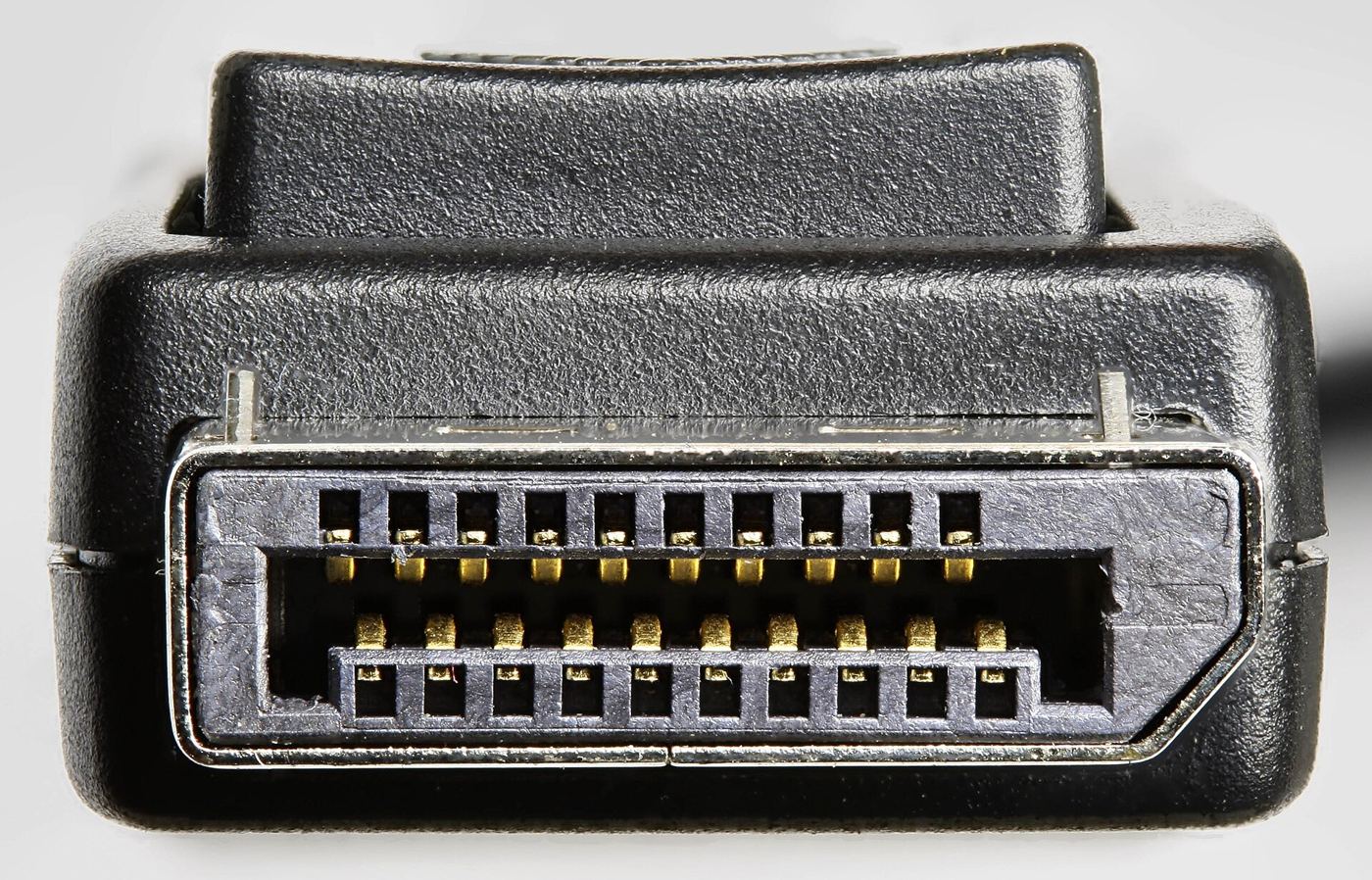
Featured image: DisplayPort connector, photo by D-Kuru via Wikimedia Commons, CC BY-SA 3.0 AT.
Enjoyed this? Follow along for more guides and deals. More guidesXInstagramFacebookWhatsAppTelegram